.avif)
Webflow CMS at Scale: Architecture Patterns for Large Sites, Reference Fields, and Syncing Data Through the API
Key Takeaways
- Webflow's limits changed twice in 2026. The next-gen CMS (all customers since April 9, 2026) raised page limits to 40 Collection lists per page, 10 nested lists, 100 items per nested list, and three levels of nesting. The May 2026 pricing change folded the CMS and Business plans into Premium: 20,000 items and 40 Collections.
- Storage limits and display limits are different problems. Your plan caps what you can store. Page limits cap what you can render at once. Most large-site failures come from the second.
- Reference fields are your schema budget. Premium allows 10 reference and multi-reference fields per Collection, Team and Enterprise allow 20, and multi-reference lists cannot be filtered or sorted. Precompute what the Designer cannot query.
- The Data API v2 is built for batch work. Bulk endpoints take up to 100 items per request, rate limits are per API key (60, 120, or 600 requests per minute by plan), and a site publish is limited to one per minute.
- Large sites need an external source of truth. Keep catalogs, locations, or listings in Postgres, Airtable, a PIM, or a headless CMS, and sync one way into Webflow with a job that upserts by a stable external key, skips unchanged items by hash, and archives instead of deleting.
- Know your exit signals early. Multiple dynamic URL segments, faceted search, relationships that carry data, real-time inventory, or more than 20,000 items on a self-serve plan are where you move up a plan, add a Webflow Cloud app, or go headless.
- Scale is a governance problem too. Treat field slugs as an API contract, give every integration its own scoped token, and keep editors and sync jobs out of each other's fields.
Introduction: Big Webflow Sites Break in Predictable Places
Webflow is easy to start and surprisingly easy to scale, right up to the moment it isn't. A marketing site with a blog never notices the CMS limits. A site with thousands of locations, products, resources, and integration pages hits them in a familiar order: the reference field cap on the main Collection, the list limits on a hub template, the API rate limit during the first full import, and finally the item cap on the plan.
None of those limits are secret, but they are spread across the pricing page, a dozen Help Center articles, and the developer reference, and they moved a lot in 2026. In January, Webflow shipped a rebuilt CMS architecture to Enterprise. In April, it rolled the new display limits out to everyone. In May, it replaced the CMS and Business plans with a single Premium plan and introduced a Team plan. A mental model of Webflow from 2024 is now wrong in both directions.
This guide is for developers, technical marketers, and teams running large Webflow sites. It covers the current limits (verified against Webflow's pricing page, Help Center, and developer documentation as of October 2026), content modeling and relationships, lists, slugs, and Localization at scale, the Data API v2, an external source of truth with a working, idempotent sync script, performance and SEO, governance, failure patterns, and a prioritized plan.
Brightter, Inc. is a Webflow Certified Partner, and our own website is a 443-URL Webflow build that depends on large programmatic Collections. The patterns below are the ones we use there and on client builds. Limits come from Webflow's documentation; practices are labeled as practices.
Part 1: The Limits That Shape Every Large Webflow Build
Two kinds of limits matter, and confusing them causes most bad architecture decisions. Storage limits come from your plan: items, Collections, fields, reference fields, and API requests per minute. Display limits apply to every page on every plan: how many Collection lists a page can contain, how deeply they nest, and how many items each renders. Webflow's Help Center puts it directly: page limits "control what displays, not what you can store."
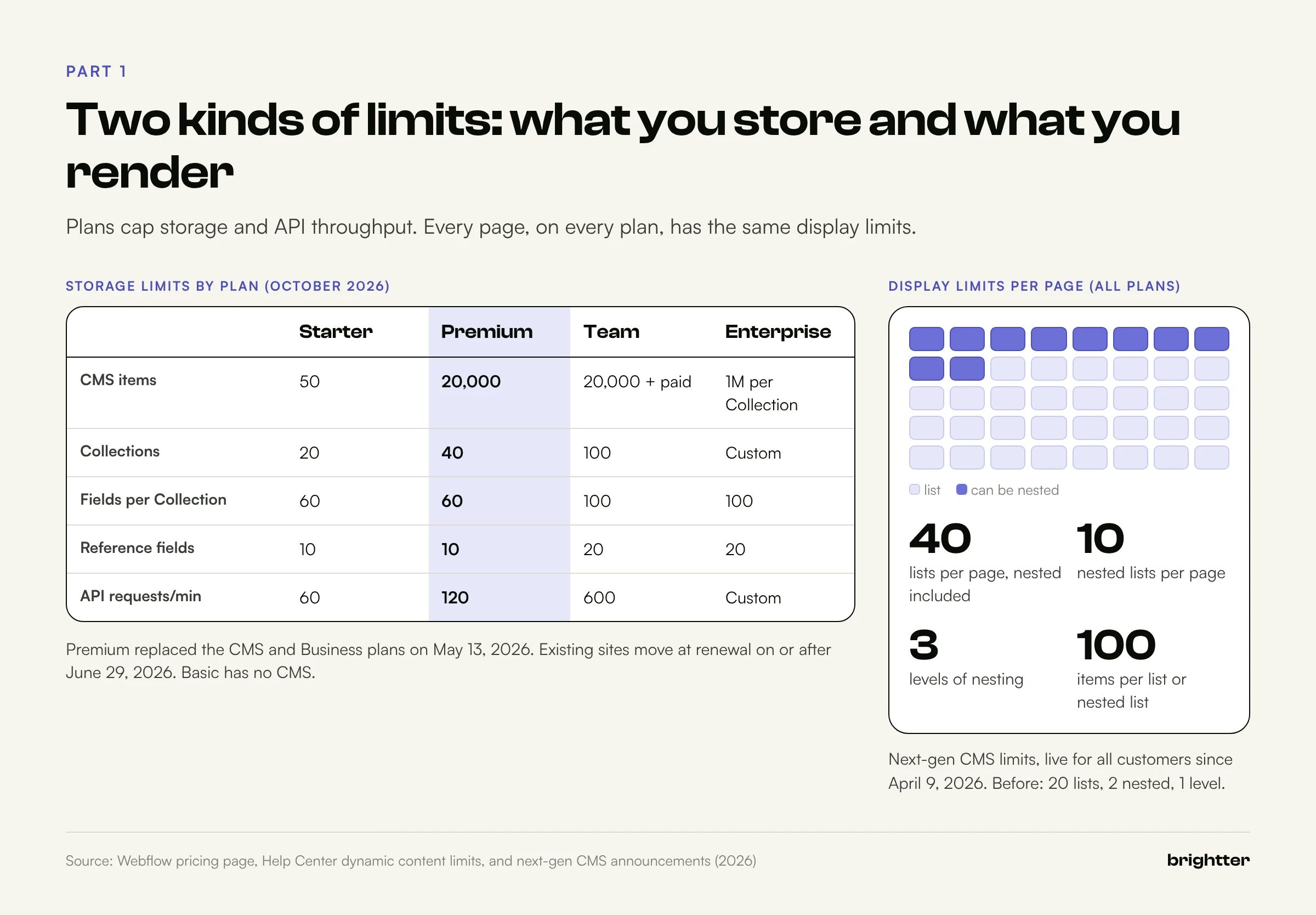
Storage limits by plan (October 2026)
On May 13, 2026, Webflow combined the CMS and Business Site plans into a single Premium plan and added a Team plan between self-serve and Enterprise. Existing CMS and Business sites move to Premium at their next renewal or billable change on or after June 29, 2026 (Freelancer and Agency Workspaces, and sites on legacy pricing, on or after November 16, 2026). Until your site migrates, your old plan's limits apply.
| Limit | Starter | Premium | Team | Enterprise |
|---|---|---|---|---|
| CMS items | 50 | 20,000 | 20,000 (more for a fee) | Up to 1 million per Collection |
| CMS Collections | 20 | 40 | 100 | Custom |
| Fields per Collection | 60 | 60 | 100 | 100 |
| Reference and multi-reference fields per Collection | 10 | 10 | 20 | 20 |
| Content management API rate limit | 60 requests/min | 120 requests/min | 600 requests/min | Custom |
The Basic plan has no CMS. Three notes:
- Premium's item count is the headline change. Webflow's announcement says Premium includes "20,000 CMS items and 40 CMS Collections" and that CMS item add-ons are no longer needed. The old CMS plan's 2,000-item ceiling is gone for migrated sites.
- Team does not raise the item cap by default. It raises Collections, fields, reference fields, and the API rate limit (five times the self-serve rate). Enterprise is where item counts change by an order of magnitude: Webflow's January 29, 2026 announcement lists up to one million items per Collection and over one million per site.
- The developer docs still use the old plan names. The rate limit reference lists 60 requests per minute for Starter and Basic, 120 for CMS, eCommerce, and Business, and custom for Enterprise. Read the
X-RateLimit-Limitheader on any response for your exact number.
Display limits on every page
The next-gen CMS reached all customers on April 9, 2026. The Help Center now lists:
| Display limit | Current value | Before the next-gen CMS |
|---|---|---|
| Collection lists per page (including nested) | 40 | 20 |
| Nested Collection lists per page | 10 | 2 |
| Nesting depth | 3 levels | 1 level |
| Items per Collection list | 100 by default | 100 |
| Items per nested list (per parent item) | 100 | 10 |
| Items per paginated page | 100 | 100 |
You still cannot nest Collection lists inside components, and a duplicated list used with the Skip setting (to show items 101 to 200 without pagination) counts toward the 40.
Field-level limits that bite during imports
- Images: 4MB maximum per CMS image, and up to 25 images per multi-image field. The API applies the same 4MB limit to image URLs it fetches.
- Rich text: no documented size limit, but code blocks sent through the API become an empty string.
- Validations: the API cannot create them. Set required fields and character limits in the Webflow UI.
- Option fields: the API expects the option's
id, not its display name.
Plan on draft and archived items still occupying storage. They live in the Collection until deleted, so an archive policy that never deletes will eventually fill a site that is near its cap.
Part 2: Modeling Content for Scale
A Webflow Collection behaves like a database table with a fixed schema, one Collection template page, and one URL pattern. That single-template rule drives most modeling decisions: if two kinds of content need different templates, they usually need different Collections.
Start from templates and queries, not source tables
Teams moving a catalog into Webflow often copy the source schema table by table. That produces too many Collections, too many reference fields, and templates that cannot render what they need. A better order:
- List the templates: product, category hub, location, city hub, author.
- List what each must render: "Product page shows its category, three related products, its accessories, and recent reviews."
- Map each need to a mechanism: a reference field, a multi-reference field, a filtered list on another Collection, or a precomputed field.
- Then define Collections and fields, and check them against the budgets in Part 1.
Four relationship patterns
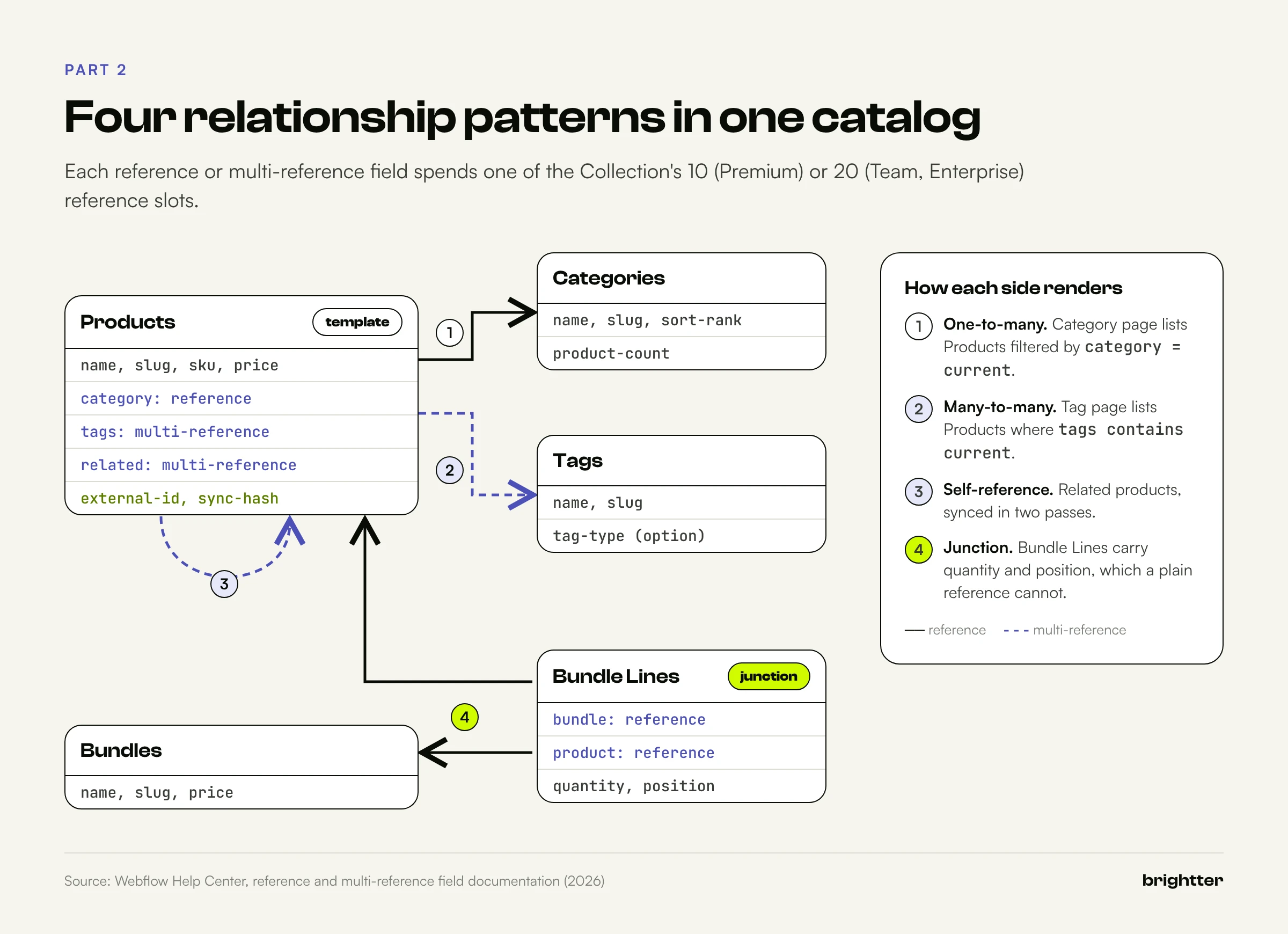
One-to-many (each product has one category). Put a reference field on the child: Products gets category. The product template binds the category's fields directly. The category template shows the reverse side with a list of Products filtered by category equals the current Category, which costs a list but no extra field.
Many-to-many (articles and tags). Put a multi-reference field on the side editors work on most: Articles gets tags. A nested list shows an article's tags in selected order; the tag template uses a list of Articles filtered by tags contains the current Tag.
Self-reference (related products). A multi-reference can point at its own Collection. Your sync job needs two passes or two runs, because referenced items must exist before you can store their IDs.
Relationships that carry data (a product in a bundle with a quantity). Webflow references are plain pointers with no attributes. Use a junction Collection: Bundle Lines with references to Bundle and Product, a quantity, and a position. The bundle template lists Bundle Lines filtered by the current bundle and sorted by position.
| Relationship | Webflow implementation | Cost | Main constraint |
|---|---|---|---|
| One-to-many | Reference on the child, filtered list for the reverse | 1 reference field | References cannot be used for sorting |
| Many-to-many | Multi-reference on one side, filtered list for the reverse | 1 reference field | Multi-reference lists cannot be filtered or sorted |
| Self-reference | Multi-reference to the same Collection | 1 reference field | Sync needs two passes |
| Relationship with attributes | Junction Collection | 1 Collection, 2 reference fields | Junction items count toward the item cap |
| Hierarchy (state, city) | Reference to parent on each level | 1 reference field per level | Parent cannot appear in the URL |
Budget your reference fields
Ten reference fields go quickly on a central Collection: category, brand, related items, accessories, author, region, industries, use cases, integrations. When you are about to run out:
- Collapse taxonomies. Replace separate multi-references for industries, use cases, and roles with one Tags Collection that has an Option field for tag type, and one
tagsfield. - Reverse the pointer. Either side of a many-to-many can hold the field; put it where there is room.
- Denormalize display data. If a template only needs the brand name and logo, store them as plain fields written by your sync job.
- Move to Team or Enterprise, where the budget is 20.
Precompute what the Designer cannot query
The Designer filters, sorts, and limits, but it cannot aggregate, join across more than one hop, or compute values. A sync job can write sort keys (a sort-rank number that encodes business priority), flags (is-featured, has-stock, is-indexable), rollups (a location count on each State), and display strings (a formatted price or address line). Each costs one field and replaces fragile custom code.
Keep editor-owned and sync-owned fields apart
On a synced Collection, every field has exactly one owner. Name, SKU, price, and specifications belong to the source system and are overwritten on every sync. An editorial intro, a custom FAQ, or an SEO title override belongs to editors and must never be touched by the job. Say so in the field help text and enforce it in code: the script in Part 7 only writes the fields it maps.
Part 3: Rendering Relationships: Lists, Nesting, Filtering, and Sorting
A data model only works if the Designer can render it. This is where display limits, filtering rules, and nesting depth turn a schema into a working template.
Plan each template's list budget
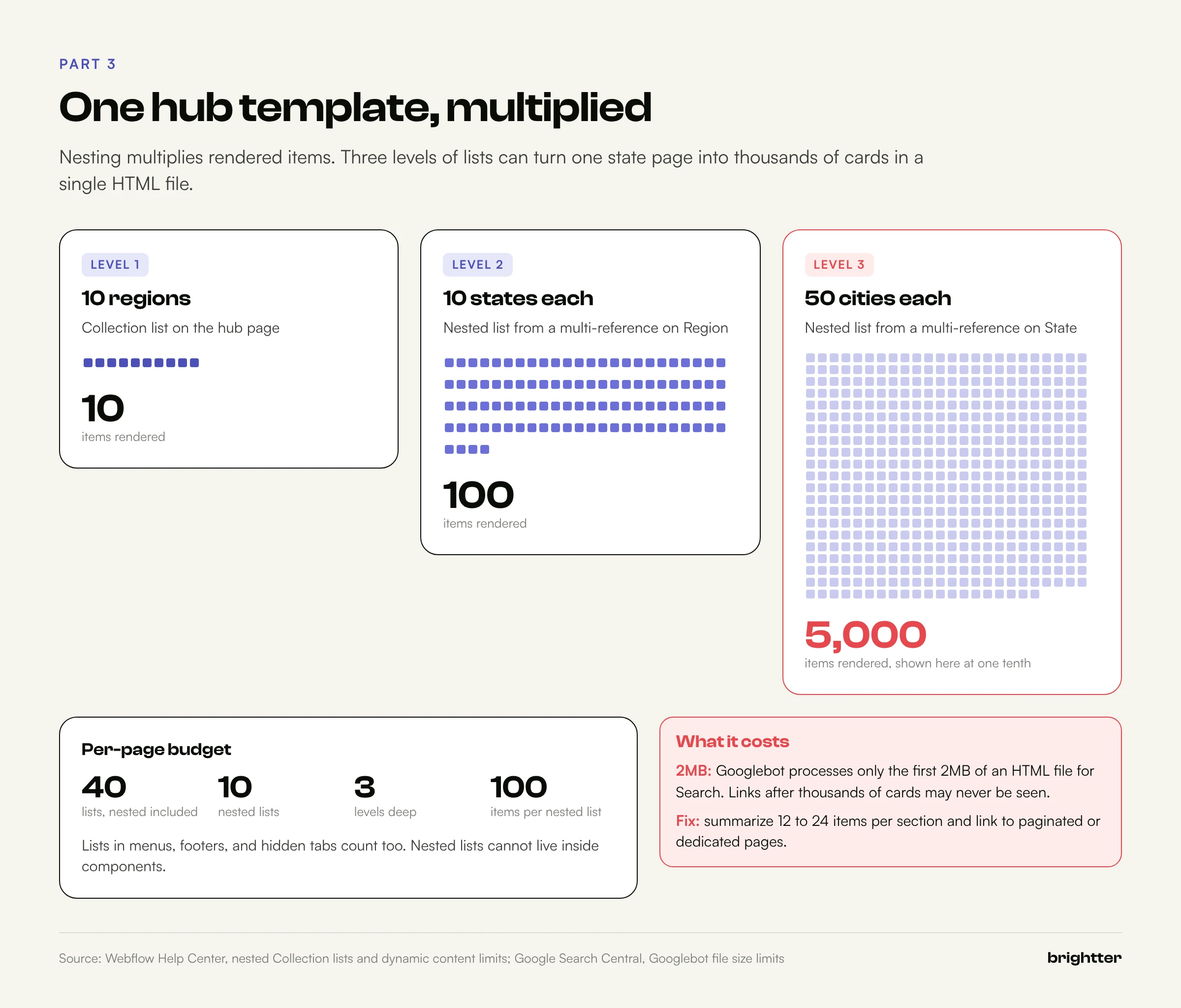
Every Collection list on a page counts toward the 40, including nested lists, lists hidden by conditional visibility, and CMS-driven lists in the navigation or footer. A product template with a tags list, a related products list, a category badge nested in each related product, filtered reviews, filtered FAQs, and two mega menu lists uses seven. The problem appears on hub templates: a state page that shows every city, grouped by county, with each city's top services, reaches three levels of nesting fast. Since April 2026 that is allowed, but allowed is not the same as fast. Count lists and estimate rendered items before you build.
How nesting works now
A nested list sits inside a parent list and is driven by a multi-reference field on the parent item. Each parent can show up to 100 nested items, three levels deep: Regions, then each Region's States, then each State's Cities. The output multiplies: 10 regions with 10 states with 50 cities is 5,000 city cards in one HTML document.
Nesting follows multi-reference fields. If the relationship is stored as a single reference on the child (City references State), you cannot nest Cities inside a States list on that basis. Either add a multi-reference on the parent (State has cities) maintained by your sync job, or build separate filtered lists per section.
Filtering: what the Designer can and cannot do
List filters handle the common cases well: a switch "is on," a reference "equals" the current item, a multi-reference "contains" the current item, dates relative to now, number thresholds, and "is not" the current item. You can add as many filters as you need, and since 2025 filters, sorting, and limits can be bound to component properties, so one card grid can show different sets in different places.
The constraints that matter at scale:
- Lists sourced from a multi-reference field cannot be filtered or sorted. Items appear in stored order, so your sync job must write the array in the order you want.
- Reference fields cannot be used for sorting. You cannot sort Products by their Category's name; precompute a sort key.
- Curated lists (hand-picked items, introduced in 2025) take no filters, sorting, or pagination.
- No arbitrary logic. No OR across fields, no aggregation, no "items whose category's region equals X." Store a flag or a denormalized value instead.
The most useful sorting pattern for large Collections is a precomputed number field that encodes the order you want, then sort by it and limit the list. Business rules stay in your source system, where they can be tested.
Pagination on large lists
Pagination shows up to 100 items per page. Webflow implements it with a query parameter (in the form ?<list-id>_page=2), so each page of results has its own crawlable URL. That matches Google's pagination guidance: give each page its own URL, link pages sequentially, and do not canonicalize every page to the first. Paginated hubs work best when the hub has unique introductory content and later pages act as navigation, not landing pages.
Filtering and sorting through the API
The Data API offers query options the Designer does not. GET /v2/collections/{collection_id}/items accepts exact matches on name and slug, date ranges on createdOn, lastUpdated, and lastPublished, and custom field filters as filter[<fieldSlug>][<operator>]. Webflow allows up to 10 filter terms and 2 text-search terms per request, combined with AND, and sorting on up to three custom fields of type Plain Text, Email, Phone, Number, Date, and Switch.
# Find one item by its external key, and list items changed since a date.
# -g stops curl from treating the square brackets as a glob.
curl -sg "https://api.webflow.com/v2/collections/$COLLECTION_ID/items?filter[external-id][eq]=sku-10442&limit=1" \
  -H "Authorization: Bearer $WEBFLOW_TOKEN" -H "accept: application/json"

curl -sg "https://api.webflow.com/v2/collections/$COLLECTION_ID/items?lastUpdated[gte]=2026-10-01T00:00:00Z&limit=100&offset=0" \
  -H "Authorization: Bearer $WEBFLOW_TOKEN" -H "accept: application/json"
These are good for spot checks and incremental reads. For a full sync it is usually cheaper to list everything once and diff in memory, as the script in Part 7 does.
Part 4: Slugs, URLs, and Localization
URL structure is the hardest part of a Webflow CMS build to change later, so decide it before the first import.
What Webflow URLs can and cannot do
Each Collection has one Collection URL, and each item lives at /<collection-url>/<item-slug>. Since April 2023, Collection pages can sit inside static folders, so /resources/guides/<item-slug> is possible, and folders can nest. What you cannot do natively:
- More than one dynamic segment.
/services/<category>/<item>or/blog/<year>/<slug>are not possible; only the final item slug is dynamic. - Reference values in the URL. A City cannot live under its State's slug. For
/locations/texas/austin, the options are a Collection per state (fine for five, unworkable for 50), a flat/locations/austin-tx, or a reverse proxy that rewrites paths. - Slashes in slugs. They become hyphens.
A reverse proxy at the CDN edge can produce URL shapes Webflow cannot, but it moves canonicals, sitemaps, and redirects into your own code. Our guide to edge SEO with Cloudflare Workers covers what that takes.
Slug rules for synced Collections
Slugs are unique within a Collection, lowercase, with spaces converted to hyphens, and Webflow's API reference warns that changing a slug breaks links to the old one. For synced content:
- Derive slugs once and store them in the source system. Never regenerate a slug automatically when a name changes.
- Resolve collisions deterministically. Two products called "Oak Desk" get a short suffix derived from each external key, so the same record always gets the same slug.
- Treat a slug change as a redirect event. Add the 301 in the same release, generated from a table of old and new slugs.
- Never reuse a slug for a different entity.
Localization with the CMS
Webflow Localize serves locales from subdirectories such as /es/. For the CMS, Webflow's Help Center and developer docs describe these behaviors:
- The schema is shared; content is per locale. Secondary locales inherit primary values until someone edits that field in that locale; a Reset control restores inheritance.
- Items are unique to each locale, but through the API all variants share one item ID and are distinguished by
cmsLocaleId. - Publishing is per locale, and deleting an item from the primary locale deletes it everywhere.
- Translated Collection slugs require the Advanced or Enterprise Localize plan.
- Hreflang is generated for you in each page's
<head>, the auto-generated sitemap, or both. A custom sitemap needs hreflang entries you write yourself. - Routing uses 302 redirects by browser language, and Webflow's 301 redirects do not apply to localized slugs or subdirectories.
- Localize cannot be combined with Ecommerce features for products and categories.
For API work:
| Task | How to do it |
|---|---|
| Create an item in every locale | POST /items/insert with allCmsLocales: true |
| Add a locale to an existing item | POST /items/insert with the item's id and cmsLocaleIds |
| Update one locale's content | PATCH /items with the item id and that cmsLocaleId |
| Read all variants of one item | GET /items?cmsLocaleId=<a>,<b>&filter[id][eq]=<id> |
| Publish one locale only | POST /items/publish with items: [{ id, cmsLocaleIds: [...] }] |
Locale variants count toward the 100-item request limit: one item in three locales counts as three. Webflow's documentation does not say how variants count against plan item caps, so for a large localized catalog, get that answer from Webflow in writing before choosing a plan.
Part 5: The Data API v2 for CMS Work
The Data API v2 is the supported way to move CMS content at volume. CSV import is fine for a one-time load; anything recurring belongs in the API.
Authentication and scopes
Site tokens act on one site; OAuth apps act for a user across the sites they authorize. For an internal sync, a site token is simpler. Give each integration its own token with the narrowest scopes (cms:read and cms:write for a sync job, cms:read for a delivery channel), so you can revoke one without breaking others. Rate limits apply per key, which is another reason to separate them.
Staged and live: the model behind every endpoint
Every CMS item has a staged version (what editors and the API edit) and, once published, a live version (what visitors see). Webflow's publishing guide describes state with isDraft and lastPublished:
| Item state | lastPublished | isDraft | What happens next |
|---|---|---|---|
| Draft, never published | null | true | Stays off the live site until published |
| Staged for next site publish | null | false | Goes live on the next full site publish |
| Live | a date | false | Visible on the live site |
| Live, with changes in draft | a date | true | Live version stays up; staged edits wait |
| Archived | any | any | isArchived: true; removed from the live site at the next full site publish |
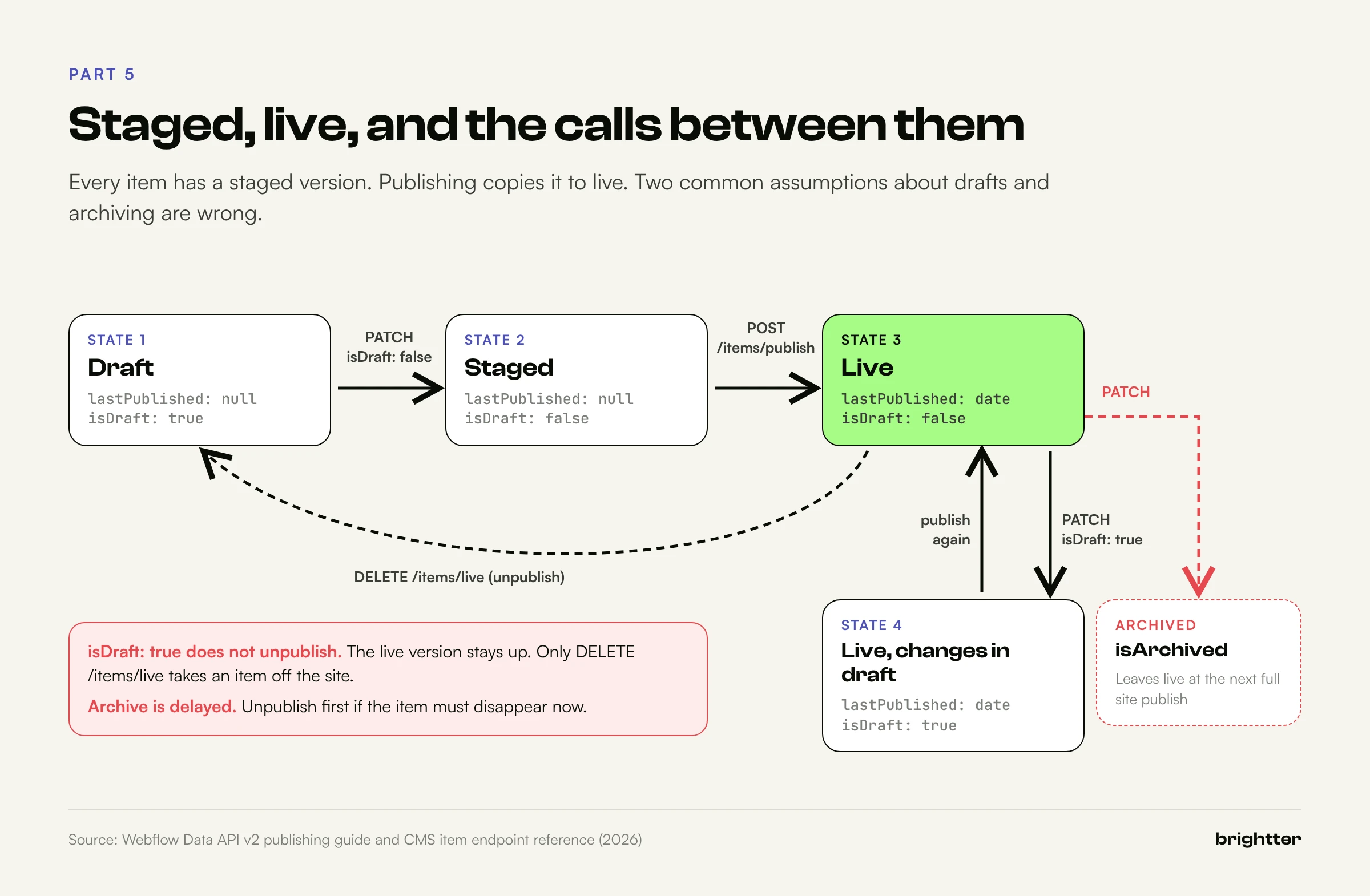
Three consequences are easy to miss:
isDraft: truedoes not unpublish a live item. It only holds staged edits back. To take an item off the live site, callDELETE /items/live, which also setsisDrafttotrue.- Archiving takes effect on the live site only at the next full site publish. If it must disappear now, unpublish first, then archive.
- Scheduled publishing cannot be controlled through the API. Schedule in the UI, or run your own scheduler that calls the publish endpoint.
The endpoints you will actually use
| Task | Endpoint | Batch size |
|---|---|---|
| List staged items | GET /v2/collections/{id}/items | 100 per page (limit, offset) |
| List live items | GET /v2/collections/{id}/items/live | 100 per page |
| Create staged items | POST /v2/collections/{id}/items/insert | Up to 100 (locale variants count) |
| Create and publish in one step | POST /v2/collections/{id}/items/live | Batch; batch_too_large if exceeded |
| Update staged items | PATCH /v2/collections/{id}/items | Up to 100 |
| Update and publish in one step | PATCH /v2/collections/{id}/items/live | Batch |
| Publish specific items | POST /v2/collections/{id}/items/publish | Batch; batch_too_large if exceeded |
| Unpublish items | DELETE /v2/collections/{id}/items/live | Up to 100 |
| Delete items | DELETE /v2/collections/{id}/items | Batch |
| Publish the whole site | POST /v2/sites/{site_id}/publish | One successful publish per minute |
A good default for synced content: write staged items with the bulk endpoints, then publish exactly the items you changed with POST /items/publish. That leaves the rest of the site alone, avoids the site publish limit, and lets you hold changes for review by not publishing them. Keep every batch at 100, the documented limit on create, update, and unpublish.
Two field formats cause most first-import errors. Reference fields take an item ID string and multi-reference fields an array of IDs, and the referenced items must already exist and be published. Option fields take the option's ID, read from GET /v2/collections/{id}.
Rate limits and how to stay under them
From Webflow's rate limit reference:
- Limits are per API key, per minute (see the table in Part 1).
- Responses include
X-RateLimit-Limit,X-RateLimit-Remaining, and, when limited,Retry-After. - Exceeding the limit returns HTTP 429 (
too_many_requests), withRetry-Aftertypically 60 seconds. - Site publish allows one successful publish per minute, on top of the general limit.
At 120 requests per minute and 100 items per request, writing 20,000 items takes 200 requests, a little under two minutes of quota. One request per item turns the same job into nearly three hours. Batch everything.
The content delivery API for read-heavy channels
If a frontend, app, or email system reads published content, use the content delivery API: a read-only, cached mirror of the live item endpoints at api-cdn.webflow.com (for example https://api-cdn.webflow.com/v2/collections/{id}/items/live). Responses are cached for 300 seconds on most plans and 120 seconds on Enterprise, and cached responses do not count against your rate limit. The cf-cache-status header shows whether you hit the cache.
Webhooks: react to changes instead of polling
The CMS webhook triggers are collection_item_created, collection_item_changed, collection_item_deleted, and collection_item_unpublished (all need cms:read), plus site_publish. Multi-locale edits fire once per locale. From Webflow's webhook guide:
- Signatures. Webhooks created through an OAuth app, or with a site token after April 14, 2025, carry
x-webflow-timestampandx-webflow-signature: a SHA-256 HMAC of the timestamp and request body joined by a colon. Dashboard-created webhooks are not signed. - Replay protection. Reject timestamps more than five minutes old.
- Retries. Anything but HTTP 200 (including redirects and timeouts) is retried up to three more times, 10 minutes apart; after repeated failures Webflow deactivates the webhook and emails you.
- Limits. At most 75 webhooks per trigger type.
// webhook.mjs: receive Webflow CMS webhooks, verify the signature, and queue work.
// Node 18+. WEBFLOW_WEBHOOK_SECRET is the webhook's secret key (site token webhooks)
// or your OAuth app's client secret (app-created webhooks).
import http from 'node:http';
import { createHmac, timingSafeEqual } from 'node:crypto';

const SECRET = process.env.WEBFLOW_WEBHOOK_SECRET;
const MAX_AGE_MS = 5 * 60 * 1000;

function verify(rawBody, timestamp, signature) {
  if (!timestamp || !signature) return false;
  if (Math.abs(Date.now() - Number(timestamp)) > MAX_AGE_MS) return false; // replay guard
  const expected = createHmac('sha256', SECRET).update(`${timestamp}:${rawBody}`).digest('hex');
  const a = Buffer.from(expected, 'hex');
  const b = Buffer.from(signature, 'hex');
  return a.length === b.length && timingSafeEqual(a, b);
}

http.createServer(async (req, res) => {
  let raw = '';
  for await (const chunk of req) raw += chunk;
  if (!verify(raw, req.headers['x-webflow-timestamp'], req.headers['x-webflow-signature'])) {
    res.writeHead(401).end();
    return;
  }
  const { triggerType, payload } = JSON.parse(raw);
  // Answer fast with a 200, then do the real work out of band.
  res.writeHead(200).end();
  if (triggerType.startsWith('collection_item_')) {
    console.log(triggerType, payload.collectionId, payload.id);
    // enqueue({ triggerType, collectionId: payload.collectionId, itemId: payload.id });
  }
}).listen(process.env.PORT ?? 3000);
Verify against the raw body as received and respond before doing slow work. Webhooks are delivery hints, not a guaranteed log, so pair them with a scheduled full reconciliation (the sync script below, run nightly). And when the sync job writes to Webflow, its own collection_item_changed events come back; if they trigger another sync, you have built a loop. Ignore events for items whose sync-hash matches what the job last wrote.
Part 6: Designing an External Source of Truth
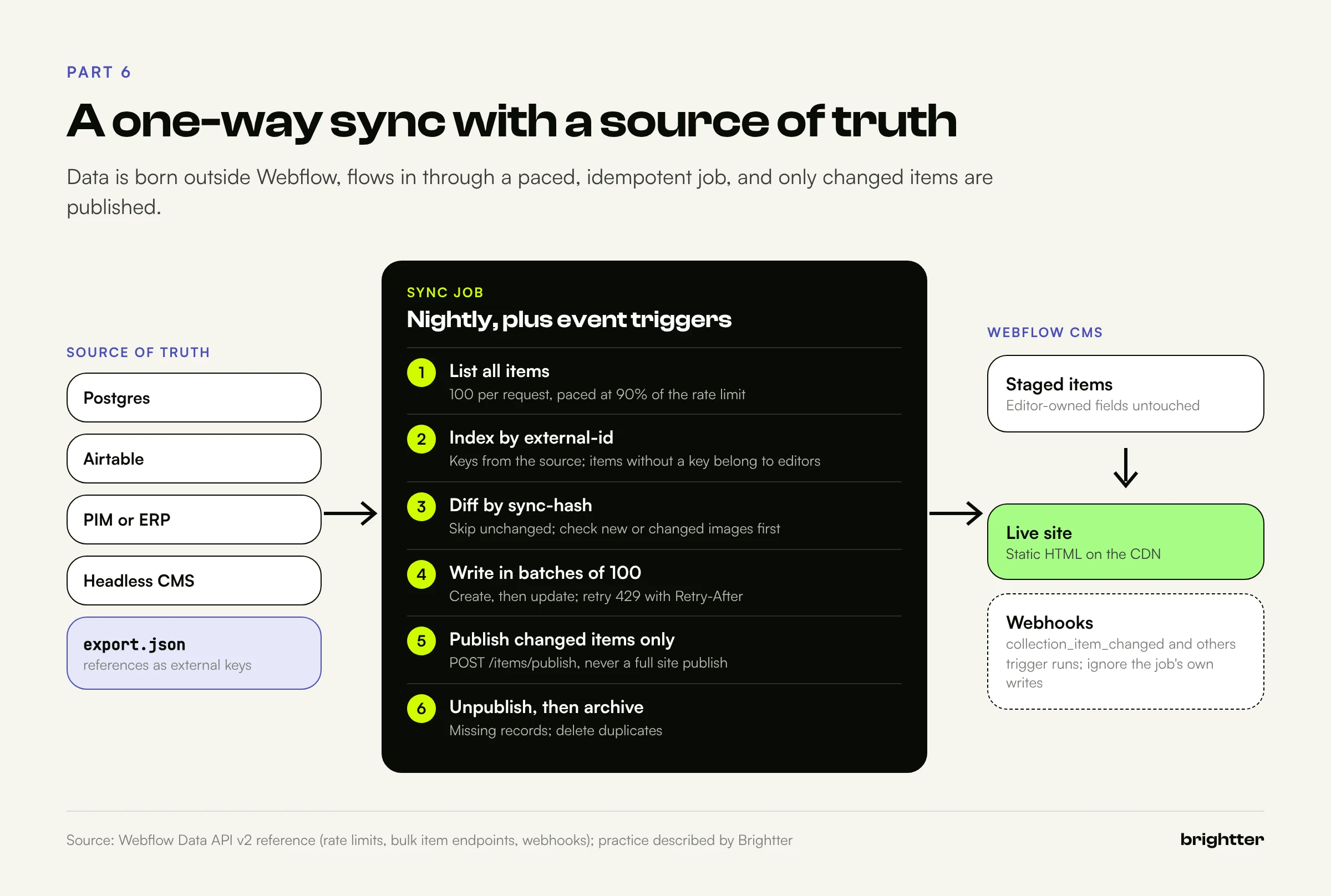
Past a few thousand items, the Webflow CMS works best as a presentation layer: where content is shaped into pages, not where it is born. Products come from a PIM, locations from an operations database, listings from a marketplace backend. Webflow receives a copy, renders it, and serves it fast.
Choose the source by who edits the data
| Source | Good fit | Watch out for |
|---|---|---|
| Postgres or another SQL database | Catalogs, locations, listings, anything with real relationships and validation | You need an admin interface for non-technical editors |
| Airtable | Small teams, operational data, editorial planning, up to tens of thousands of rows | Its API allows 5 requests per second per base, and a 429 means waiting 30 seconds |
| PIM or ecommerce platform | Product content with variants, specifications, and pricing | Export formats and IDs vary; map to a flat record first |
| Headless CMS | Long-form content with complex editorial workflow, shared across channels | Rich text conversion (structured content to Webflow's rich text HTML) is its own project |
Six design rules for the sync boundary
- One-way by default. Editors change synced data in the source. Two-way sync needs conflict rules most teams do not need.
- Every synced item carries a stable external key. A Plain Text field
external-idholds the source's primary key or SKU. Never match on name or slug, because both change. - Store a content hash. A
sync-hashfield holds a SHA-256 of the values the job writes, so unchanged items are skipped and a nightly full sync stays cheap. - Items without an external key belong to editors. The job never updates, archives, or deletes them, so editors can add one-off items to a synced Collection safely.
- Archive, then delete on a schedule. When a record disappears, unpublish and archive the item. A bad export that drops half the catalog is then recoverable.
- Sync referenced Collections first. Categories before Products, States before Cities, because references need the target's item ID and the target must be published.
Shape the export, not the sync
Keep the sync script generic and push source-specific logic into the export. For Postgres, one query produces the exact document the script reads, with references expressed as external keys:
-- export.sql: build the JSON document sync.mjs reads, straight from Postgres.
-- Usage: psql "$DATABASE_URL" -At -f export.sql > export.json
WITH cats AS (
  SELECT json_agg(json_build_object(
           'key', c.external_key, 'name', c.name, 'slug', c.slug,
           'description', coalesce(c.description, '')
         ) ORDER BY c.external_key) AS rows
  FROM categories c
  WHERE c.status = 'active'
),
prods AS (
  SELECT json_agg(json_build_object(
           'key', p.external_key, 'name', p.name, 'slug', p.slug, 'sku', p.sku,
           'price', round(p.price_cents / 100.0, 2), 'summary', coalesce(p.summary, ''),
           'category_key', c.external_key,
           'related_keys', coalesce((
              SELECT json_agg(r.external_key ORDER BY pr.position)
              FROM product_related pr JOIN products r ON r.id = pr.related_id
              WHERE pr.product_id = p.id AND r.status = 'active'), '[]'::json),
           'image_url', p.image_url, 'image_alt', p.image_alt
         ) ORDER BY p.external_key) AS rows
  FROM products p
  LEFT JOIN categories c ON c.id = p.category_id
  WHERE p.status = 'active' AND p.publish_to_web
)
SELECT json_build_object(
  'categories', coalesce((SELECT rows FROM cats), '[]'::json),
  'products',   coalesce((SELECT rows FROM prods), '[]'::json)
);
The WHERE clauses hold publishing rules, and related_keys is ordered because multi-reference lists render in stored order. For Airtable, a PIM, or a headless CMS, write a small exporter that produces the same shape. For Airtable, keep its limits (5 requests per second per base, a 30-second wait after a 429) inside the exporter by writing to a file first.
Part 7: A Working, Idempotent Sync Script
The script below syncs Collections from a JSON export into Webflow. It is plain Node 18 or later with no dependencies, and a second run with the same data writes nothing. It handles:
- Pacing and retries: 90 percent of your plan's limit,
Retry-Afteron 429s, backoff with jitter on network errors and 5xx. - Pagination and upserts: lists 100 items at a time, matches on
external-id, writes in batches of 100, and skips items whosesync-hashmatches. - References and slugs: resolves keys to item IDs from Collections synced earlier, and suffixes a slug deterministically if an editor-owned item holds it.
- Images: checks new or changed image URLs (reachable, an image, 4MB or less) and only sends images when the source URL or alt text changed.
- Removals: unpublishes missing items, then archives, deletes, or ignores them (
ON_MISSING), and deletes duplicates from interrupted runs. - Targeted publishing and dry runs: publishes only what it changed;
--dry-runprints the plan.
// sync.mjs: one-way, idempotent sync from an external source of truth into Webflow CMS.
// Node 18+ (uses global fetch). No dependencies.
//
//   WEBFLOW_TOKEN=xxx CATEGORIES_COLLECTION_ID=aaa PRODUCTS_COLLECTION_ID=bbb \
//   node sync.mjs ./export.json [--dry-run]
//
// Each synced Collection needs two extra Plain Text fields: "external-id" and "sync-hash".
// Collections with images also need a Plain Text field "image-fingerprint".

import { createHash } from 'node:crypto';
import { readFile } from 'node:fs/promises';

const API = process.env.WEBFLOW_API_BASE ?? 'https://api.webflow.com/v2';
const TOKEN = process.env.WEBFLOW_TOKEN;
const RPM = Number(process.env.WEBFLOW_RPM ?? 120);       // your plan's limit per minute
const ON_MISSING = process.env.ON_MISSING ?? 'archive';  // archive | delete | ignore
const DRY_RUN = process.argv.includes('--dry-run');
const SOURCE_FILE = process.argv.slice(2).find((a) => !a.startsWith('--'));
const BATCH = 100;
const MAX_IMAGE_BYTES = 4 * 1024 * 1024;                  // Webflow CMS image limit

if (!TOKEN || !SOURCE_FILE) {
  console.error('Usage: WEBFLOW_TOKEN=... node sync.mjs <export.json> [--dry-run]');
  process.exit(1);
}

// Collections are synced in order, so referenced Collections come first.
// map() turns one source record into Webflow fieldData. refs holds the
// external-id to Webflow item id maps of Collections already synced.
const COLLECTIONS = [
  {
    name: 'categories',
    id: process.env.CATEGORIES_COLLECTION_ID,
    map: (r) => ({ name: r.name, slug: r.slug, description: r.description ?? '' }),
  },
  {
    name: 'products',
    id: process.env.PRODUCTS_COLLECTION_ID,
    map: (r, refs) => ({
      name: r.name,
      slug: r.slug,
      sku: r.sku,
      price: r.price,
      summary: r.summary ?? '',
      category: refs.categories.get(r.category_key) ?? null,           // Reference
      'related-products': (r.related_keys ?? [])                       // Multi-reference
        .map((k) => refs.products?.get(k))
        .filter(Boolean)
        .slice(0, 100),
    }),
    image: (r) => (r.image_url ? { url: r.image_url, alt: r.image_alt ?? r.name } : null),
  },
];

const sleep = (ms) => new Promise((r) => setTimeout(r, ms));
const backoff = (attempt) => Math.min(30_000, 1000 * 2 ** attempt) + Math.floor(Math.random() * 500);

// Simple client-side pacing: stay at 90 percent of the plan limit.
let nextSlot = 0;
async function throttle() {
  const gap = Math.ceil(60_000 / (RPM * 0.9));
  const now = Date.now();
  const wait = Math.max(0, nextSlot - now);
  nextSlot = Math.max(now, nextSlot) + gap;
  if (wait) await sleep(wait);
}

// One request with retries. Non-idempotent calls (creates) are only retried on 429,
// because a 5xx after a create may still have created the item. The dedupe step on
// the next run cleans up anything that slipped through.
async function wf(method, path, body, { idempotent = true } = {}) {
  for (let attempt = 0; ; attempt++) {
    await throttle();
    let res;
    try {
      res = await fetch(API + path, {
        method,
        headers: {
          Authorization: `Bearer ${TOKEN}`,
          'Content-Type': 'application/json',
          accept: 'application/json',
        },
        body: body ? JSON.stringify(body) : undefined,
      });
    } catch (err) {
      if (!idempotent || attempt >= 5) throw err;
      await sleep(backoff(attempt));
      continue;
    }
    const retryable = res.status === 429 || (idempotent && res.status >= 500);
    if (retryable && attempt < 6) {
      const ra = Number(res.headers.get('retry-after'));
      const waitMs = Number.isFinite(ra) && ra > 0 ? ra * 1000 : backoff(attempt);
      console.warn(`  ${res.status} on ${method} ${path}, waiting ${Math.round(waitMs / 1000)}s`);
      await sleep(waitMs);
      continue;
    }
    if (!res.ok) throw new Error(`${method} ${path} failed ${res.status}: ${await res.text()}`);
    const text = await res.text();
    return text ? JSON.parse(text) : null;
  }
}

async function listAll(collectionId) {
  const items = [];
  for (let offset = 0; ; offset += BATCH) {
    const page = await wf('GET', `/collections/${collectionId}/items?limit=${BATCH}&offset=${offset}`);
    items.push(...page.items);
    const total = page.pagination?.total ?? Infinity;
    if (page.items.length < BATCH || items.length >= total) return items;
  }
}

// Stable JSON: sorted keys, so the same data always produces the same hash.
function stable(v) {
  if (Array.isArray(v)) return `[${v.map(stable).join(',')}]`;
  if (v && typeof v === 'object') {
    return `{${Object.keys(v).sort().map((k) => `${JSON.stringify(k)}:${stable(v[k])}`).join(',')}}`;
  }
  return JSON.stringify(v ?? null);
}
const sha = (s) => createHash('sha256').update(s).digest('hex');
const chunks = (arr, n) => Array.from({ length: Math.ceil(arr.length / n) }, (_, i) => arr.slice(i * n, i * n + n));

// Webflow fetches image URLs itself, so check them first: a bad file in a
// batch would otherwise be skipped silently or fail the whole request.
async function imageOk(url) {
  try {
    const res = await fetch(url, { method: 'HEAD' });
    const type = res.headers.get('content-type') ?? '';
    const size = Number(res.headers.get('content-length') ?? 0);
    return res.ok && type.startsWith('image/') && size > 0 && size <= MAX_IMAGE_BYTES;
  } catch {
    return false;
  }
}

async function syncCollection(cfg, records, refs) {
  console.log(`\n[${cfg.name}] ${records.length} source records`);
  const existing = await listAll(cfg.id);

  // Index Webflow items by external-id. Items without one belong to editors: never touch them.
  const byKey = new Map();
  const dupes = [];
  for (const item of existing.sort((a, b) => a.createdOn.localeCompare(b.createdOn))) {
    const key = item.fieldData['external-id'];
    if (!key) continue;
    if (byKey.has(key)) dupes.push(item);
    else byKey.set(key, item);
  }
  const slugOwner = new Map(existing.map((i) => [i.fieldData.slug, i.fieldData['external-id'] ?? null]));

  // Ids are known for existing items now; new items get theirs after creation.
  refs[cfg.name] = new Map([...byKey].map(([k, i]) => [k, i.id]));

  const creates = [];
  const updates = [];
  const seen = new Set();
  for (const r of records) {
    seen.add(r.key);
    const fieldData = { ...cfg.map(r, refs), 'external-id': r.key };

    // Deterministic slug: if an editor-owned item already holds it, suffix with the key hash.
    const owner = slugOwner.get(fieldData.slug);
    if (owner !== undefined && owner !== r.key) fieldData.slug = `${fieldData.slug}-${sha(r.key).slice(0, 6)}`;
    slugOwner.set(fieldData.slug, r.key);

    // Webflow re-hosts images, so compare a fingerprint of the source URL and alt text,
    // not the image field (which comes back as a Webflow CDN URL).
    const current = byKey.get(r.key);
    const img = cfg.image?.(r) ?? null;
    if (cfg.image) {
      const before = current?.fieldData['image-fingerprint'] ?? '';
      fieldData['image-fingerprint'] = img ? sha(`${img.url}\n${img.alt}`).slice(0, 16) : '';
      if (!current || before !== fieldData['image-fingerprint']) {
        if (!img) fieldData['main-image'] = null;
        else if (await imageOk(img.url)) fieldData['main-image'] = img;
        else {
          console.warn(`  image rejected for ${r.key}: ${img.url}`);
          fieldData['image-fingerprint'] = before; // retry on the next run
        }
      }
    }
    const { 'main-image': _image, ...hashed } = fieldData;
    const hash = sha(stable(hashed));
    fieldData['sync-hash'] = hash;

    if (!current) creates.push({ isDraft: false, isArchived: false, fieldData });
    else if (current.fieldData['sync-hash'] !== hash || current.isArchived) {
      updates.push({ id: current.id, isDraft: false, isArchived: false, fieldData });
    }
  }
  const missing = [...byKey.values()].filter((i) => !seen.has(i.fieldData['external-id']) && !i.isArchived);
  const remove = ON_MISSING === 'ignore' ? dupes : [...missing, ...dupes];

  const unchanged = records.length - creates.length - updates.length;
  console.log(`  create ${creates.length}, update ${updates.length}, unchanged ${unchanged}, ` +
    `missing ${missing.length} (${ON_MISSING}), duplicates ${dupes.length}`);
  if (DRY_RUN) return;

  const toPublish = [];
  for (const batch of chunks(creates, BATCH)) {
    const res = await wf('POST', `/collections/${cfg.id}/items/insert?skipInvalidFiles=false`, { items: batch }, { idempotent: false });
    const keyBySlug = new Map(batch.map((b) => [b.fieldData.slug, b.fieldData['external-id']]));
    for (const item of res.items) {
      const key = keyBySlug.get(item.fieldData.slug);
      if (key) refs[cfg.name].set(key, item.id);
      toPublish.push(item.id);
    }
  }
  for (const batch of chunks(updates, BATCH)) {
    await wf('PATCH', `/collections/${cfg.id}/items?skipInvalidFiles=false`, { items: batch });
    toPublish.push(...batch.map((b) => b.id));
  }
  for (const batch of chunks(toPublish, BATCH)) {
    await wf('POST', `/collections/${cfg.id}/items/publish`, { itemIds: batch });
  }

  // Take removed items off the live site first, then archive or delete them.
  const live = remove.filter((i) => i.lastPublished);
  for (const batch of chunks(live, BATCH)) {
    await wf('DELETE', `/collections/${cfg.id}/items/live`, { items: batch.map((i) => ({ id: i.id })) });
  }
  const deletes = ON_MISSING === 'delete' ? remove : dupes;
  const archives = ON_MISSING === 'archive' ? missing : [];
  for (const batch of chunks(deletes, BATCH)) {
    await wf('DELETE', `/collections/${cfg.id}/items`, { items: batch.map((i) => ({ id: i.id })) });
  }
  for (const batch of chunks(archives, BATCH)) {
    await wf('PATCH', `/collections/${cfg.id}/items`, { items: batch.map((i) => ({ id: i.id, isArchived: true })) });
  }
  if (ON_MISSING !== 'ignore') for (const i of missing) refs[cfg.name].delete(i.fieldData['external-id']);
}

const source = JSON.parse(await readFile(SOURCE_FILE, 'utf8'));
const refs = {};
for (const cfg of COLLECTIONS) {
  if (!cfg.id) throw new Error(`Missing collection id for ${cfg.name}`);
  await syncCollection(cfg, source[cfg.name] ?? [], refs);
}
console.log(DRY_RUN ? '\nDry run complete. Nothing was written.' : '\nSync complete.');
How the script stays idempotent
Creates are the only non-idempotent call, so they are not retried after a server error. If a create succeeded but the response was lost, the next run finds two items with the same external-id, keeps the oldest, and deletes the other. Every other write gives the same result however often it runs.
The hash excludes the image object. Webflow re-hosts images and returns its own URL, so comparing the image field would make every item look changed. The image-fingerprint field is the reliable record of which source image is in Webflow, and a rejected image keeps the old fingerprint so the next run retries it.
Self-references converge over two runs. New products cannot reference other new products until their IDs exist. The second run resolves them, the hash changes, and those items update. Running twice after a large import is normal.
Running it in production
- Schedule a nightly full run and trigger extra runs from source events or webhooks. Full runs are the safety net; events are the speed.
- Set
WEBFLOW_RPMbelow your real limit if anything else shares the key. - Guard against bad exports. Stop if the record count drops by more than a threshold you choose. One empty export should never archive a catalog.
- Log and alert on the plan counts (create, update, unchanged, missing, duplicates).
- Serve source images from a stable, public URL under 4MB, resized at the source.
Part 8: Performance and SEO at Scale
Webflow publishes static HTML to its CDN, so more items do not make each request slower. What hurts is usually one of the following.
Heavy hub templates
The 2026 limits let one page render thousands of items. Google's documentation says Googlebot crawls the first 2MB of a supported file for Google Search, so a hub rendering 40 lists of 100 cards can push links near the end of the document past what Google processes, and mobile users pay for the weight too. For hub pages:
- Render a summary (12 to 24 items per section) and link to paginated or dedicated pages for the rest.
- Put the links that matter for crawling high in the HTML.
- Lazy load images below the fold, but keep the main above-the-fold image eager so Largest Contentful Paint is not delayed.
- Do not hide lists in tabs or sliders to "fit more in." Hidden items still ship in the HTML.
Programmatic pages and index quality
A large Collection with a template is a programmatic SEO system. The risk is not the number of pages but the number that do not deserve indexing: location pages that only swap a city name, variants that duplicate a parent, tag pages with one item. They pile up as "Crawled, currently not indexed" and dilute the site. We covered measuring and pruning them in programmatic SEO without index bloat. For Webflow specifically:
- Add an
is-indexableswitch, set by your sync job from data quality rules, and use it to output anoindexmeta tag in the template's custom code and to filter internal link lists. - Mind the sitemap. The auto-generated sitemap includes published Collection pages. For item-level control, publish a custom sitemap instead; Google allows 50,000 URLs or 50MB uncompressed per file, so very large sites need a sitemap index (and, if localized, hreflang entries you write yourself).
- Canonicals. For true duplicates such as variant pages, set the canonical from a CMS field in the template's custom code.
Structured data from CMS fields
Collection templates can output JSON-LD in custom code with CMS fields as values, the cheapest way to add Product, LocalBusiness, or Article markup at scale. Keep it consistent with visible content, watch for quote marks in text fields (they break the JSON), and validate samples after schema changes, since one bad binding breaks every item.
Internal linking through references
References are your internal link graph: category to product, state to city, author to article. Make every important item reachable from a hub within a few clicks, not only from page 30 of a paginated list.
Publish behavior and freshness
Webflow says the next-gen CMS made publishing faster at scale, but the advice stands: publish items, not the whole site, when the change is content only.
Part 9: When to Stop and Go Headless or Custom
Webflow at scale has clear exit signals. The useful question is not "can Webflow do this?" but "which part should leave Webflow, and what replaces it?" We compared the full options in Webflow vs headless vs custom in 2026; here is the CMS-specific version.
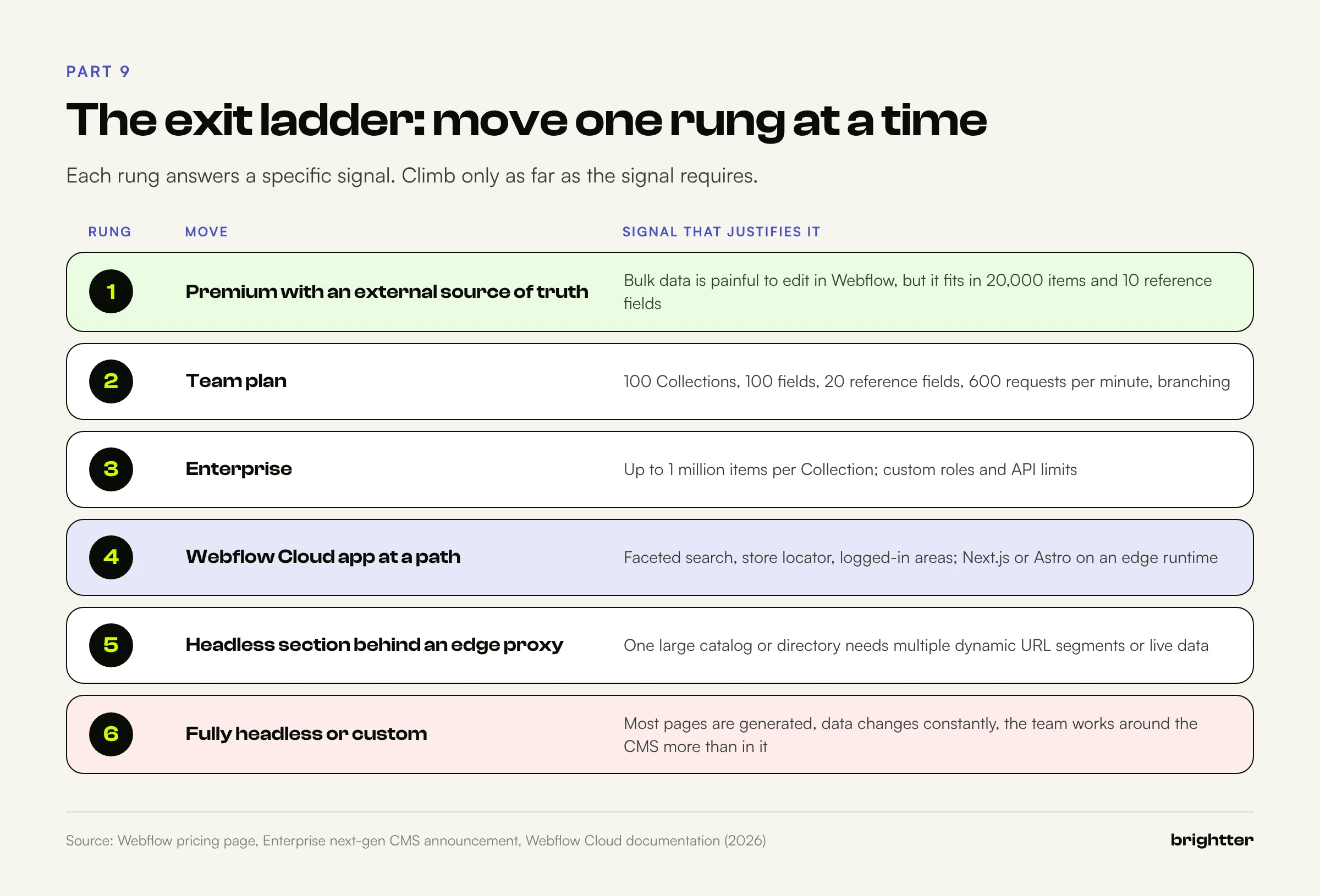
| Signal | What it means | First move |
|---|---|---|
| More than 20,000 items on a self-serve plan | You are past Premium's storage | Team with extra items, or Enterprise |
| More than 40 Collections or 10 reference fields on a key Collection | Your schema has outgrown Premium | Collapse taxonomies first, then Team or Enterprise |
| URLs need two or more dynamic segments | Webflow cannot produce them | Flatten URLs, or add an edge proxy |
| Faceted search across many attribute combinations | The Designer cannot query it, and static pages per combination would be index bloat | A search service or a Webflow Cloud app for that section |
| Prices, stock, or availability change by the minute | Publish cycles are too slow | Fetch live data client-side or from an app, and keep it out of indexable static content |
| Per-user or authenticated content | Static pages cannot vary per user | A Webflow Cloud app or a separate application |
| Relationships with deep queries (three or more hops, aggregates) | The Designer cannot compute them | Precompute in the sync job; if that becomes most of the work, go headless |
| Editors need workflow the CMS cannot provide | Approvals, versioning, structured content reuse | Headless CMS as the source, synced into Webflow |
The middle options
There is a lot of room between "all Webflow" and "leave Webflow":
- Move up a plan. Team raises fields to 100 and reference fields to 20, raises the API limit to 600 requests per minute, and adds page branching and single-page publishing. Enterprise raises item counts to as many as one million per Collection.
- Keep Webflow for pages, move data out, as described in Part 6.
- Add a Webflow Cloud app for the dynamic part. Webflow Cloud deploys Next.js (15 or later), Astro (5 or later), Vite, or static apps on an edge runtime, mounted at a path on your Webflow site such as
/appor/search. A product finder, a store locator, or a logged-in area can live there while marketing pages stay in the Designer. The app can read published CMS content through the content delivery API. - Go headless for one section. A large catalog or directory can run on a separate frontend under a subdirectory, proxied at the edge, while the rest of the site stays on Webflow.
Go fully headless or custom when most of the value lives in constantly changing data, most pages are generated rather than designed, or the team spends more time working around the CMS than in it.
Part 10: Governance: Roles, Staging, and Review
Large sites fail through process as often as through limits.
Roles and ownership
Webflow's default roles separate site managers and designers from content editors and marketers; Enterprise adds custom roles. For a synced site, add a layer Webflow does not enforce:
| Asset | Owner | Rule |
|---|---|---|
| Collection schema and field slugs | Developers | Changed only through a reviewed change request |
| Sync-owned fields | The sync job | Never edited by hand; help text says so |
| Editor-owned fields | Content team | Never written by the job |
| Templates and Collection lists | Designers | Changes tested on staging or a branch |
| API tokens | Developers | One per integration, least privilege, rotated on staff changes |
Field slugs are an API contract. Renaming a display name is harmless; changing a slug or type breaks every integration that writes it. Keep the output of GET /v2/collections/{id} in version control and diff it against the live site in CI.
Staging and review
- Staging subdomain. Publish to
webflow.iowithout touching the custom domain, and confirm indexing is disabled for the subdomain in site settings. - Page branching (Team and Enterprise). Branch a page or Collection template, edit it in isolation, and publish the branch to its own staging URL before merging. Branches share the main CMS and cannot create or modify items, so content and template changes need separate review paths. Content editors and marketers can create branches but not merge them by default.
- Item-level review. Run the sync without publishing, review staged changes, then publish the changed items. For editor content, draft states are the review queue.
- Single-page publishing (Team and Enterprise). Lets a team publish one static page or one Collection template without pushing other unpublished design changes, which removes a common source of accidental releases on busy sites. It does not publish CMS item data; items still publish on their own or with a full site publish.
Audit and recovery
Log the sync job's plan and results by external key, so "why did this product change?" has an answer, and take a site backup before schema changes and large imports. Team plans add an activity log.
Part 11: Failure Patterns That Show Up Again and Again
1. Matching on slug or name. The job renames a product, the slug changes or no longer matches, and the next run creates a duplicate. Always match on external-id.
2. One request per item. A 15,000-item import that sends one create per item takes hours and hits 429 responses constantly. Batch at 100.
3. Full site publishes from scripts. They hit the one-per-minute limit and ship unrelated design work. Publish items instead.
4. Archiving without unpublishing. An archived item stays live until the next full site publish. If the item had to disappear (a recalled product, an expired listing), unpublish it first.
5. Comparing image fields. Webflow returns its own hosted URL, so every run sees a "change" and re-uploads every image. Compare a fingerprint of the source URL instead.
6. Silent image failures. With skipInvalidFiles at its default of true, an oversized or unreachable image is skipped and the rest of the item is saved without it. Check images before sending, or set the parameter to false and handle the error.
7. Hub templates that render everything. A state page that nests every city and every service ships megabytes of HTML. Summarize on the hub and link deeper.
8. Reference fields spent early. The main Collection hits 10 reference fields in the first phase, and the next feature needs an eleventh. Plan the budget with the full roadmap in view, and collapse taxonomies early.
9. Webhook loops. The sync job writes an item, the webhook fires, the handler triggers a sync, and the cycle repeats. Ignore events the job caused.
10. Editors and jobs writing the same field. The next sync overwrites the editor's work. Split fields by owner.
11. Slug changes without redirects. A rename in the source system changes a slug, and years of links break overnight. Freeze slugs once published and generate redirects from a change table.
12. Localization added late. Nobody planned how variants count toward batches, plan limits, or slugs. Decide locales and slug translation before the first import.
Part 12: A Prioritized Plan for Large Webflow CMS Sites
This order puts the decisions that are expensive to reverse first and the optimizations last.
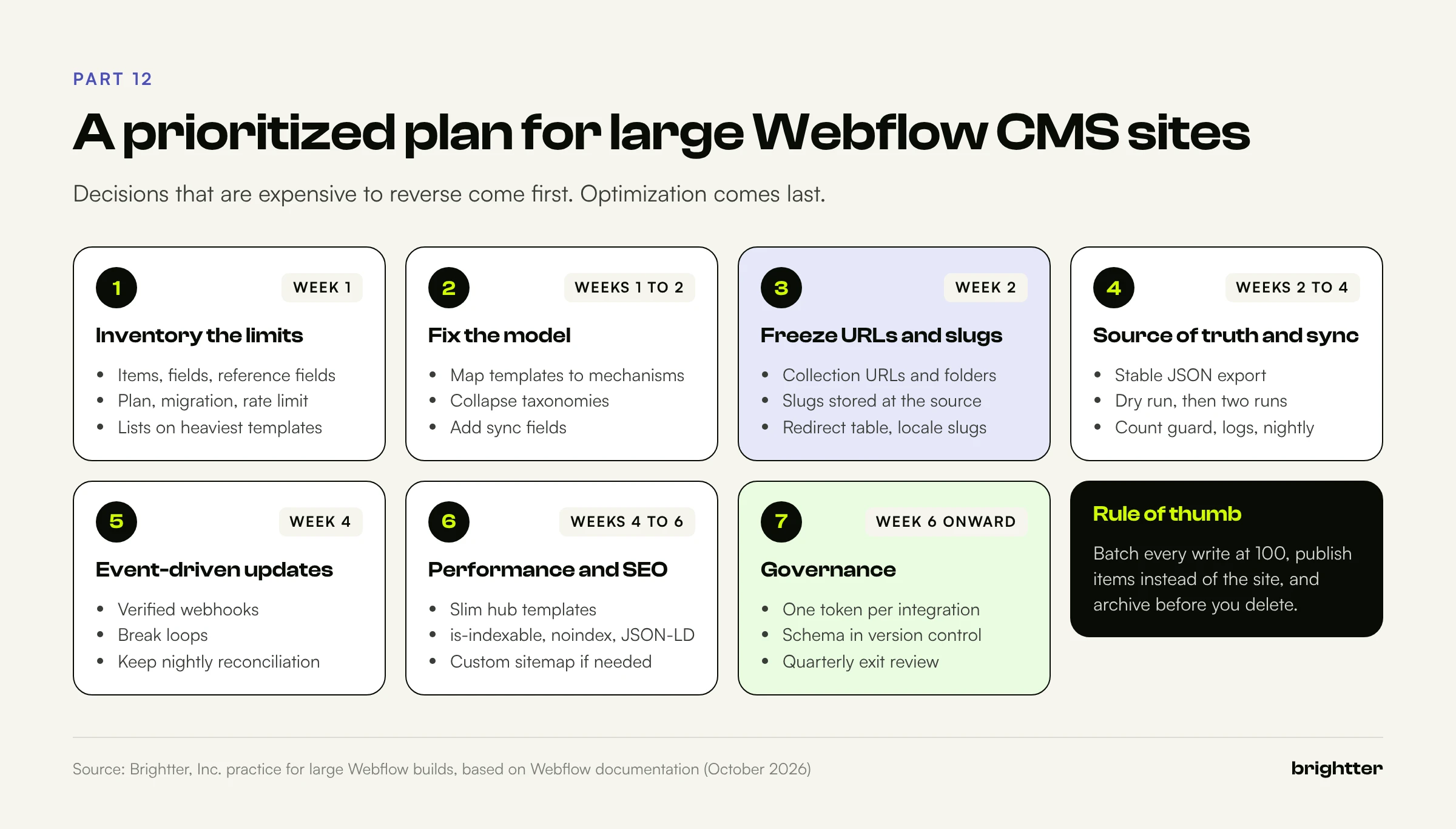
Step 1: Inventory and verify limits (week 1).
- List every Collection with its item, field, and reference field counts.
- Confirm your plan, whether it has migrated, and your
X-RateLimit-Limit. - Count lists and nesting on your five heaviest templates.
Step 2: Fix the model (weeks 1 to 2).
- Map every template's needs to references, filtered lists, or precomputed fields.
- Collapse taxonomies where reference budgets are tight; add junction Collections where relationships carry data.
- Add
external-id,sync-hash, and (where needed)image-fingerprintto every synced Collection.
Step 3: Freeze URL and slug rules (week 2).
- Decide Collection URLs and folders, and document what cannot change.
- Store slugs in the source system and build a redirect table for any slug change.
- If you localize, decide on slug translation and hreflang before importing.
Step 4: Build the source of truth and the sync (weeks 2 to 4).
- Write the export to a stable JSON shape.
- Dry run the sync, then run it twice to resolve self-references.
- Add the record count guard, logging, and a nightly schedule.
Step 5: Add event-driven updates (week 4).
- Trigger syncs from source system events or verified Webflow webhooks.
- Break webhook loops and keep the nightly reconciliation.
Step 6: Tune templates for performance and SEO (weeks 4 to 6).
- Slim hub templates, place important links early, and fix lazy loading.
- Add
is-indexable, conditionalnoindex, canonical overrides, and JSON-LD from CMS fields. - Move to a custom sitemap if you need item-level control.
Step 7: Put governance in place (week 6 onward).
- One token per integration, a version-controlled schema with a CI diff, and documented field ownership.
- Staging and branch review for templates; publish-after-review for synced content.
- Review the exit signals in Part 9 every quarter.
Conclusion: Treat Webflow as the Presentation Layer
Webflow's CMS in late 2026 is far more capable than two years ago: higher display limits for everyone, 20,000 items on Premium, a million per Collection on Enterprise, and an API with the bulk, publish, and webhook endpoints serious integrations need.
What has not changed is the shape of a successful large build. The model is designed around templates, relationships respect the reference budget, data lives in a system built for data and flows in through a job that is batched, paced, idempotent, and boring, pages stay light, and editors, designers, and code each have their own lane.
Start with the inventory in Step 1. Most teams find their first real constraint is not the one they expected.
Need help scaling a Webflow CMS? Brightter, Inc. is a Webflow Certified Partner that designs CMS architectures, builds API sync pipelines from SQL databases, Airtable, PIMs, and headless CMSs, and audits large Webflow sites for performance and index quality. We run the same patterns on our own large programmatic Webflow build. Talk to our team about your site.