.avif)
Interaction to Next Paint (INP): A Field Guide to Diagnosing and Fixing Slow Interactions
Key Takeaways
- Interaction to Next Paint (INP) replaced First Input Delay as a Core Web Vital on March 12, 2024. It measures the latency of every click, tap, and key press during a visit and reports close to the worst one. A page is good at 200 milliseconds or less and poor above 500 milliseconds, judged at the 75th percentile of page loads.
- INP is a mobile problem first. In the HTTP Archive's 2025 Web Almanac, 77 percent of websites had good INP on mobile versus 97 percent on desktop, and only 63 percent of the 1,000 most visited sites passed on mobile.
- Every slow interaction breaks down into input delay, processing duration, and presentation delay. The dominant phase tells you which fix to reach for.
- Field data decides whether you pass; lab data tells you why. Use CrUX (through PageSpeed Insights, Search Console, the CrUX API, or BigQuery) to see the score, and real user monitoring with the web-vitals attribution build and the Long Animation Frames API to find the exact element, script, and phase responsible.
- The core fix is the same everywhere: keep tasks on the main thread short. Yield with
scheduler.yield()where it is supported (Chrome, Edge, and Firefox) and fall back tosetTimeoutelsewhere, do the visual update first, and defer everything else until after the next paint. - Third-party scripts are the usual cause on marketing sites. Consent banners, reCAPTCHA, chat widgets, tag managers, and A/B testing tools compete with your own code for the same thread. Load them later, behind facades, or only where needed.
- Webflow and WordPress have specific traps (custom code embeds, interactions, plugin script sprawl), but the same measure, attribute, fix, verify loop works everywhere.
Introduction: The Metric That Measures How a Site Feels
For years, the Core Web Vitals conversation was mostly about loading, which describes the first few seconds of a visit. Chrome's own usage data, cited by Google in its INP documentation, says that about 90 percent of a user's time on a page is spent after it loads. That is when people open menus, filter product grids, type into search boxes, accept cookie banners, and submit forms.
First Input Delay ignored nearly all of that. It measured only the delay before the browser started handling the first interaction, not the handler or the screen update, so most sites passed it easily.
INP fixes both gaps. It watches every click, tap, and key press for the whole life of the page, measures each one from the moment of input until the browser paints the next frame, and reports a value close to the slowest. If a user taps "Add to cart" and nothing visibly happens for 600 milliseconds, INP sees it.
That matches the complaint users actually have ("I clicked it and nothing happened"), and it makes INP harder to fix, because the cause can sit anywhere in your JavaScript, your rendering pipeline, or your third-party scripts.
This guide is for developers and technical SEOs who need to get from "Search Console says INP is poor" to a specific line of code: how INP is calculated, field and lab data, attribution with web-vitals and the Long Animation Frames API, a DevTools workflow, fixes with code, third-party scripts, Webflow and WordPress notes, and a remediation plan.
Part 1: What INP Measures
The definition
Google's documentation on web.dev says INP "assesses a page's overall responsiveness to user interactions" by observing the latency of all click, tap, and keyboard interactions during a visit. The final value is the longest interaction observed, with outliers ignored.
Three details in that definition matter in practice.
Only three interaction types count. Mouse clicks, taps on a touchscreen, and key presses (on a physical or onscreen keyboard) are measured. Hovering, scrolling, and zooming are not. A busy scroll handler can still hurt INP indirectly by occupying the main thread when a user taps.
The measurement ends at the next paint. INP doesn't stop when your event handler returns. It stops when the browser presents the next frame after the interaction. If your handler finishes in 20 milliseconds but triggers a 300 millisecond style and layout recalculation, the interaction took over 300 milliseconds.
A page with no interactions has no INP. If the user only scrolls, or a crawler loads the page without interacting, no INP value is reported. This is why Lighthouse's default navigation mode can't report INP.
Thresholds
Google's thresholds, assessed at the 75th percentile of page loads and split by mobile and desktop:
| INP at the 75th percentile | Rating | What it means |
|---|---|---|
| 200 ms or less | Good | Interactions feel immediate for most visits |
| Over 200 ms, up to 500 ms | Needs improvement | Noticeable lag on a meaningful share of visits |
| Over 500 ms | Poor | Users regularly see the page freeze after input |
The 75th percentile rule means you pass when at least 75 percent of page views have an INP at or below 200 milliseconds. It also means the slow quarter of your audience decides the score. That quarter is usually on mid-range and low-end Android phones, which is why mobile INP fails so much more often than desktop.
How the reported value is chosen
On a page with only a few interactions, INP is simply the slowest one. On pages with many interactions (a long session in a web app, a form with dozens of fields), one unusual hiccup would otherwise dominate the score, so the definition ignores the single highest interaction for every 50 interactions. On a page with 120 interactions, the third slowest is reported.
Then the per-page-view values are collected across all visits, and the 75th percentile becomes the score you see in CrUX.

So a single slow component can fail a whole template: if the mega menu takes 450 milliseconds to open on mobile and a quarter of visitors open it, the template fails even if everything else is fast. Interactions late in a session count too, so a listing page that slows as its DOM grows can report a poor INP despite fast early clicks.
The three phases of an interaction
Every interaction has three parts, and their sum is the interaction's latency:
- Input delay: the time from the user's input until the first event handler starts running. It is long when the main thread is busy with something else at the moment of input, typically script evaluation during page load, a timer, or a third-party task.
- Processing duration: the time all the event callbacks for that interaction take to run. A single tap can fire
pointerdown,pointerup, andclick(andmousedownandmouseupfor compatibility), and every listener on every one of them counts. - Presentation delay: the time from when the last callback finishes until the next frame is presented. This includes
requestAnimationFramecallbacks, style recalculation, layout,ResizeObserverandIntersectionObservercallbacks, paint, and compositing.
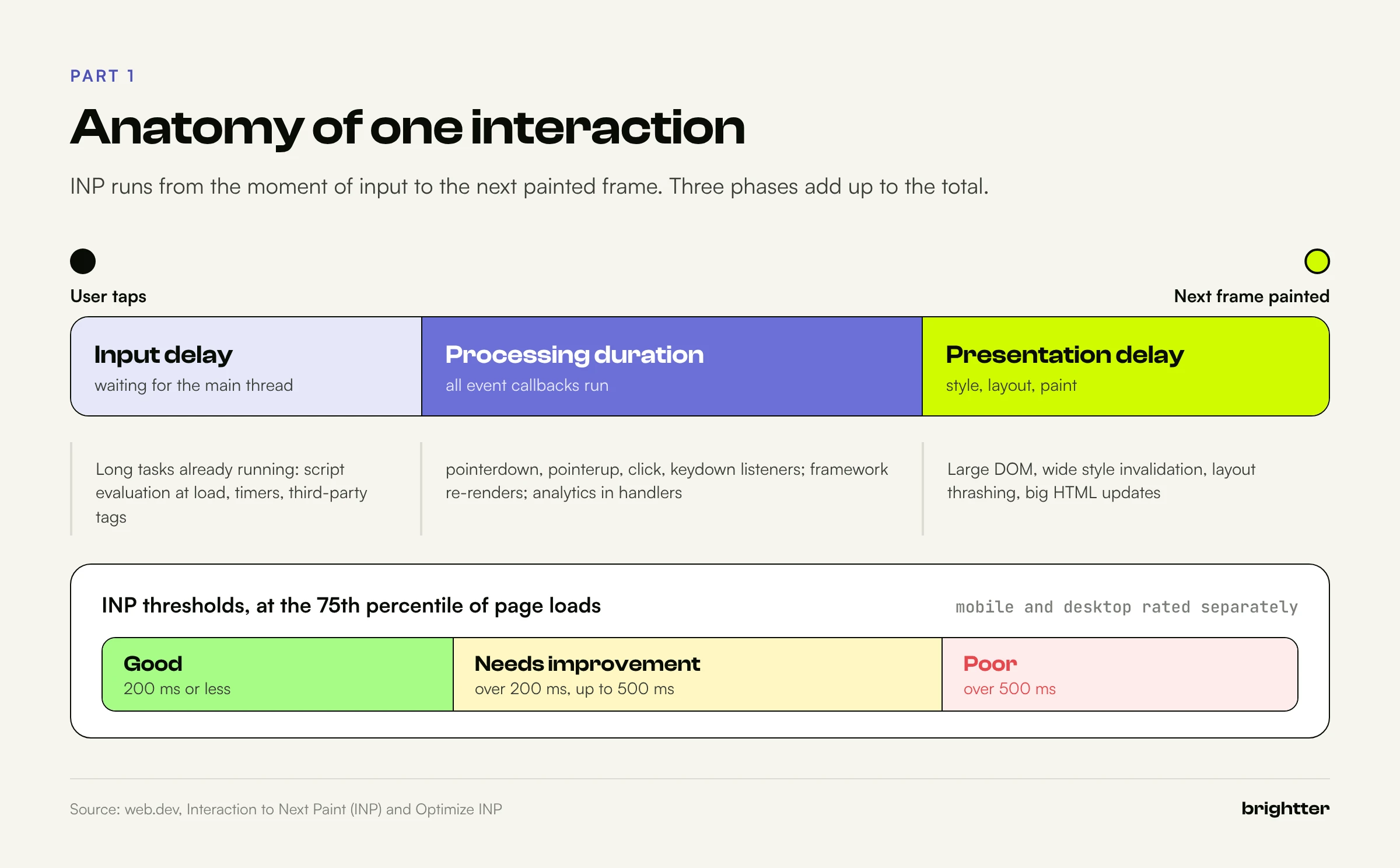
Each phase points at a different family of fixes:
| Dominant phase | Usual causes | Where to look first |
|---|---|---|
| Input delay | Script evaluation during load, long tasks from timers, third-party scripts, overlapping interactions | What else was running when the user tapped (load state, third-party tasks) |
| Processing duration | Heavy event handlers, synchronous state updates, framework re-renders, analytics fired inside handlers | Your own listeners, framework render work, tag manager listeners |
| Presentation delay | Large DOM, expensive style and layout, layout thrashing, big client-side HTML updates | Rendering cost: DOM size, CSS selectors, how much changes per interaction |
Long tasks and the main thread
The browser's main thread does almost everything a user can perceive: it parses HTML, evaluates JavaScript, runs event handlers, recalculates styles, performs layout, and paints. It does one thing at a time. A task is a unit of work on that thread, and Google defines any task over 50 milliseconds as a long task.
The browser can't interrupt a running task to handle input. If a user taps during a 400 millisecond task, the tap waits until that task finishes (input delay), then the handlers run (processing duration), then the browser renders (presentation delay). Long tasks are the common thread running through all three phases, which is why "break up long tasks" is the single most repeated piece of INP advice.
A long task doesn't have to be caused by the interaction to ruin it: a 300 millisecond analytics task that happens to run when the user taps adds up to 300 milliseconds of input delay. And rendering is main-thread work too, so a frame that recalculates styles for 6,000 elements is a long frame even if your JavaScript is fast.
Is INP a ranking factor?
Google's Search documentation says it "highly recommend[s] site owners achieve good Core Web Vitals" and that doing so "aligns with what our core ranking systems seek to reward." Relevance still comes first. Treat INP as a signal that matters at the margin for rankings and a lot for conversion: a checkout button that freezes for half a second costs revenue wherever the page ranks.
Part 2: Field Data and Lab Data
INP is a field metric. It depends on real devices, real network conditions, real third-party scripts with real consent states, and real user behavior. Lab tools are essential for diagnosis, but they can't tell you whether you pass.

CrUX: the score Google uses
The Chrome User Experience Report (CrUX) collects anonymized metrics from Chrome users who have opted in to sharing usage statistics. It powers Search Console's Core Web Vitals report, PageSpeed Insights field data, the CrUX API, and the BigQuery dataset. Three properties shape how you use it:
- It is Chrome-only. Safari added the Event Timing API in Safari 26.2 (December 2025), which made INP Baseline Newly available across major browsers, but CrUX itself only includes Chrome users. Google's documentation also warns that INP can be measured quite differently in non-Chromium browsers.
- It is a 28-day rolling window. A fix shipped today takes up to four weeks to show fully in the score.
- It is aggregated. CrUX tells you the distribution and the 75th percentile for a URL or origin. It doesn't tell you which interaction was slow or why.
CrUX also has one visibility advantage over your own JavaScript: Chrome measures the page itself, so CrUX can include interactions inside iframes that a RUM script can't observe. If CrUX says INP is poor and your RUM data looks fine, an embedded iframe (a chat widget, a video player, a payment form) is a suspect.
PageSpeed Insights and Search Console
PageSpeed Insights shows CrUX field data for the URL (if it has enough traffic) and the origin, followed by a Lighthouse lab run. The lab run cannot measure INP because it doesn't interact with the page. Its Total Blocking Time (TBT) number is the closest lab proxy: Google calls TBT "a reasonable proxy metric for INP" that is "not a substitute for INP in and of itself."
Search Console's Core Web Vitals report groups similar URLs and shows which groups fail INP on mobile and desktop. Use its example URLs as your test set.
The CrUX API
For scripted checks, the CrUX API returns the current 28-day data for an origin or URL. It is free, allows 150 queries per minute per Google Cloud project, and updates daily around 04:00 UTC.
# Current 28-day INP for a URL on phones (create an API key in Google Cloud first)
curl -s -X POST \
  "https://chromeuxreport.googleapis.com/v1/records:queryRecord?key=$CRUX_API_KEY" \
  -H "Content-Type: application/json" \
  -d '{"url":"https://www.example.com/pricing","formFactor":"PHONE","metrics":["interaction_to_next_paint"]}' \
  | jq '{p75: .record.metrics.interaction_to_next_paint.percentiles.p75,
         good: .record.metrics.interaction_to_next_paint.histogram[0].density,
         needs_improvement: .record.metrics.interaction_to_next_paint.histogram[1].density,
         poor: .record.metrics.interaction_to_next_paint.histogram[2].density,
         period: .record.collectionPeriod}'
The INP histogram has three bins that line up with the thresholds (up to 200 ms, 200 to 500 ms, and over 500 ms), and each bin's density is the share of page loads in it. If you request a URL that doesn't have enough traffic, the API returns a 404; query the origin instead.
The CrUX History API returns the same metrics as a weekly time series: 25 collection periods by default and up to 40, updated every Monday. This is the right tool for "did our fix work?" because you can see the 28-day window move week by week.
# Weekly p75 INP trend (oldest to newest) for the last 12 collection periods
curl -s -X POST \
  "https://chromeuxreport.googleapis.com/v1/records:queryHistoryRecord?key=$CRUX_API_KEY" \
  -H "Content-Type: application/json" \
  -d '{"url":"https://www.example.com/pricing","formFactor":"PHONE","metrics":["interaction_to_next_paint"],"collectionPeriodCount":12}' \
  | jq -r '[.record.collectionPeriods[].lastDate | "\(.year)-\(.month)-\(.day)"] as $d
           | .record.metrics.interaction_to_next_paint.percentilesTimeseries.p75s as $p
           | range(0; $d | length) | "\($d[.])  p75 INP: \($p[.] // "n/a")"'
Ineligible periods come back as null, printed here as "n/a."
CrUX on BigQuery
The BigQuery dataset is origin-level and monthly, released on the second Tuesday of the following month. It is useful for comparing your origin with competitors over long periods. INP lives in the interaction_to_next_paint column of the chrome-ux-report.all.YYYYMM tables:
-- Share of good, needs improvement, and poor INP page loads on phones, by month
SELECT
  _TABLE_SUFFIX AS yyyymm,
  origin,
  ROUND(SUM(IF(inp.`end` <= 200, inp.density, 0)) / SUM(inp.density), 4) AS good,
  ROUND(SUM(IF(inp.start >= 200 AND inp.start < 500, inp.density, 0)) / SUM(inp.density), 4) AS needs_improvement,
  ROUND(SUM(IF(inp.start >= 500, inp.density, 0)) / SUM(inp.density), 4) AS poor
FROM
  `chrome-ux-report.all.*`,
  UNNEST(interaction_to_next_paint.histogram.bin) AS inp
WHERE
  origin IN ('https://www.example.com', 'https://www.competitor.com')
  AND form_factor.name = 'phone'
  AND _TABLE_SUFFIX >= '202501'
GROUP BY yyyymm, origin
ORDER BY origin, yyyymm
Dividing by SUM(inp.density) normalizes the result to the phone segment, because densities in the raw tables are shared across form factors. Querying all.* scans a lot of data, so filter _TABLE_SUFFIX tightly and check the bytes estimate before running.
Real user monitoring: the data that finds the bug
CrUX tells you a template is slow. Real user monitoring (RUM) tells you which interaction on that template is slow, on which element, during which phase, and which script was running. Google's INP optimization guide is direct about this: start with field data from RUM if you have it, because CrUX "usually lacks the context needed for diagnosis."
A commercial RUM product will do this, or you can build it with Google's open source web-vitals library, whose attribution build adds a diagnostic object to each metric. For INP, the attribution includes:
| Field | What it tells you |
|---|---|
interactionTarget | A CSS selector for the element the user interacted with |
interactionType | pointer or keyboard |
inputDelay, processingDuration, presentationDelay | The three phases, in milliseconds |
loadState | Whether the interaction happened while the page was loading, at dom-interactive, dom-content-loaded, or complete |
longAnimationFrameEntries | Long Animation Frame entries that overlapped the interaction (Chromium only) |
longestScript | The longest script during the interaction, which phase it ran in, and how long it overlapped |
totalScriptDuration, totalStyleAndLayoutDuration, totalPaintDuration, totalUnattributedDuration | Where the time went, summed across the overlapping frames |
As of October 2026 the current major version is 6. Version 6 added soft navigation support for browsers that expose it, and changed includeProcessedEventEntries to default to false to save memory. Here is a production-ready collector:
// rum-inp.js: collect INP with attribution and send it to your endpoint
// npm install web-vitals@6
import { onINP, onLCP, onCLS } from 'web-vitals/attribution';

function summarizeScript(longestScript) {
  if (!longestScript) return null;
  const s = longestScript.entry;
  return {
    subpart: longestScript.subpart,               // 'input-delay' | 'processing-duration' | 'presentation-delay'
    overlapMs: Math.round(longestScript.intersectingDuration),
    invoker: s.invoker,                            // e.g. 'BUTTON#buy.onclick' or 'TimerHandler:setTimeout'
    invokerType: s.invokerType,                    // e.g. 'event-listener', 'user-callback', 'classic-script'
    sourceURL: s.sourceURL,                        // which file
    sourceFunctionName: s.sourceFunctionName,
    sourceCharPosition: s.sourceCharPosition,
    forcedLayoutMs: Math.round(s.forcedStyleAndLayoutDuration),
  };
}

function send(metric) {
  const a = metric.attribution || {};
  const payload = {
    name: metric.name,
    value: Math.round(metric.value),
    rating: metric.rating,                         // 'good' | 'needs-improvement' | 'poor'
    id: metric.id,
    navigationType: metric.navigationType,
    page: location.pathname,
    // INP-specific attribution
    target: a.interactionTarget,
    type: a.interactionType,
    loadState: a.loadState,
    inputDelay: a.inputDelay && Math.round(a.inputDelay),
    processing: a.processingDuration && Math.round(a.processingDuration),
    presentation: a.presentationDelay && Math.round(a.presentationDelay),
    scriptMs: a.totalScriptDuration && Math.round(a.totalScriptDuration),
    styleLayoutMs: a.totalStyleAndLayoutDuration && Math.round(a.totalStyleAndLayoutDuration),
    longestScript: summarizeScript(a.longestScript),
  };
  const body = JSON.stringify(payload);
  // sendBeacon survives page unload; fall back to fetch with keepalive
  if (!(navigator.sendBeacon && navigator.sendBeacon('/rum', body))) {
    fetch('/rum', { method: 'POST', body, keepalive: true });
  }
}

onINP(send);
onLCP(send);
onCLS(send);
A few implementation notes from the library's documentation:
- The callback runs when the page is hidden (tab switch, app switch, navigation), so it may run more than once per page view. Store reports by
metric.idand keep the last value. - After the library initializes, it observes events of 40 milliseconds or longer by default (the browser's own default threshold is 104 milliseconds). You can change this with the
durationThresholdoption. - An empty
interactionTargetusually means the element was removed from the DOM after the interaction, a clue that the interaction re-rendered the component. ThegenerateTargetoption lets you supply your own naming, such as adata-componentattribute. - The project's README recommends self-hosting the library rather than loading it from a public CDN.
Once data flows into a warehouse, the analysis that matters is the 75th percentile by template and element, with the dominant phase alongside it:
-- Which elements drive poor INP? Assumes a rum_events table fed by the collector above.
SELECT
  REGEXP_REPLACE(page, r'/[0-9a-z-]+$', '/:slug') AS template,
  target,
  COUNT(*) AS samples,
  APPROX_QUANTILES(value, 100)[OFFSET(75)] AS p75_inp,
  APPROX_QUANTILES(inputDelay, 100)[OFFSET(75)] AS p75_input_delay,
  APPROX_QUANTILES(processing, 100)[OFFSET(75)] AS p75_processing,
  APPROX_QUANTILES(presentation, 100)[OFFSET(75)] AS p75_presentation,
  COUNTIF(loadState != 'complete') / COUNT(*) AS share_during_load
FROM rum_events
WHERE name = 'INP'
  AND event_date >= DATE_SUB(CURRENT_DATE(), INTERVAL 14 DAY)
GROUP BY template, target
HAVING samples >= 50
ORDER BY p75_inp DESC
LIMIT 25
Adapt the template expression to your URL structure. A high share_during_load says the problem is input delay from startup work; a high p75_processing on one target says the problem is that element's handler.
A consent caveat for RUM. Most RUM scripts only run for visitors who accept analytics cookies. Google's documentation on CrUX and RUM differences notes that this can skew results. Your RUM sample may underrepresent exactly the visitors who saw the banner longest. CrUX isn't gated by your banner, so compare the two.
Part 3: Attribution With the Long Animation Frames API
The web-vitals attribution build tells you the phase and the longest script. When you need more detail, or want to see long frames that aren't tied to the worst interaction, use the Long Animation Frames API (LoAF) directly.
Why LoAF replaced Long Tasks for diagnosis
The older Long Tasks API (in Chrome since version 58, and not deprecated) reports tasks over 50 milliseconds, but it tells you almost nothing about what ran inside them, and it ignores rendering work. LoAF, which shipped in Chrome 123 and Edge 123, measures animation frames instead of tasks. A long animation frame is a rendering update delayed beyond 50 milliseconds, and each entry includes:
| Property | Meaning |
|---|---|
startTime, duration | When the frame started and how long it took (excluding presentation) |
blockingDuration | How long the frame blocked input or other high-priority work |
renderStart | When the rendering steps began (requestAnimationFrame callbacks, style and layout, observer callbacks) |
styleAndLayoutStart | When style and layout began |
firstUIEventTimestamp | When the first UI event in this frame was queued (it can be before the frame started) |
scripts | Script entries over 5 milliseconds, each with invoker, invokerType, sourceURL, sourceFunctionName, sourceCharPosition, executionStart, forcedStyleAndLayoutDuration, and pauseDuration |
blockingDuration deserves a closer look. It is the sum of each task's time beyond 50 milliseconds, with the frame's final rendering time counted inside the longest task. Chrome's documentation gives an example: tasks of 55 and 65 milliseconds followed by a 20 millisecond render produce a frame of about 140 milliseconds, but a blockingDuration of (55 minus 50) plus (65 plus 20 minus 50), or 40 milliseconds.

A LoAF collector you can paste into the console
This observer logs the worst frames with their scripts, grouped by source file. It works as a console snippet for testing and as a module in your RUM code.
// loaf-report.js: find which scripts own your long animation frames (Chromium 123+)
(() => {
  if (!PerformanceObserver.supportedEntryTypes?.includes('long-animation-frame')) {
    console.warn('Long Animation Frames API not supported in this browser');
    return;
  }

  const byScript = new Map();   // sourceURL -> { ms, count, invokers:Set }
  const worst = [];             // top frames by blockingDuration

  const host = (url) => {
    try { return new URL(url).host || '(inline)'; } catch { return '(inline)'; }
  };

  new PerformanceObserver((list) => {
    for (const frame of list.getEntries()) {
      worst.push(frame);
      worst.sort((a, b) => b.blockingDuration - a.blockingDuration);
      worst.length = Math.min(worst.length, 10);

      for (const s of frame.scripts) {
        const key = s.sourceURL || '(no url: inline or unattributed)';
        const rec = byScript.get(key) || { ms: 0, count: 0, invokers: new Set() };
        rec.ms += s.duration;
        rec.count += 1;
        rec.invokers.add(`${s.invokerType}: ${s.invoker}`);
        byScript.set(key, rec);
      }
    }
  }).observe({ type: 'long-animation-frame', buffered: true });

  // Call window.loafReport() after interacting with the page
  window.loafReport = () => {
    console.table(worst.map((f) => ({
      start: Math.round(f.startTime),
      duration: Math.round(f.duration),
      blocking: Math.round(f.blockingDuration),
      work: Math.round((f.renderStart || f.startTime + f.duration) - f.startTime),
      render: f.renderStart ? Math.round(f.startTime + f.duration - f.renderStart) : 0,
      hadInput: f.firstUIEventTimestamp > 0,
      topScript: f.scripts[0]?.sourceURL ? host(f.scripts[0].sourceURL) : '(none)',
    })));
    console.table([...byScript.entries()]
      .map(([url, r]) => ({ host: host(url), url, totalMs: Math.round(r.ms), count: r.count,
                            invokers: [...r.invokers].slice(0, 3).join(' | ') }))
      .sort((a, b) => b.totalMs - a.totalMs)
      .slice(0, 15));
  };
  console.log('LoAF observer running. Interact with the page, then run loafReport().');
})();
Paste it into the console, use the page like a visitor (open the menu, accept the banner, focus a form field), then run loafReport(). The second table ranks script hosts by time spent in long frames. When a consent platform, a tag manager container, or a chat vendor sits at the top, you know where the conversation with marketing starts.
There's no direct link from an INP entry to its frames, so tools match them by time. The web-vitals attribution build already does this and exposes the result as longAnimationFrameEntries.
LoAF limitations to keep in mind
- Chromium only. Firefox and Safari don't support it. Your attribution data describes Chrome users, which matches CrUX.
- Cross-origin scripts lose detail. A script loaded without CORS reports only its
sourceURL. Addingcrossorigin="anonymous"to the script tag (when the vendor serves CORS headers) restores function names and character positions. - Entry points, not hot spots. LoAF reports where the browser entered your code, such as an event listener, not the slow function it called. Use a DevTools profile for the exact hot spot.
- Some time is unattributed. Cross-origin iframes, extensions, and pure rendering work can lengthen a frame without any script entry. A frame with a large
duration, a laterenderStart, and no scripts usually points at rendering cost. - The buffer holds 200 entries, so observe early with
buffered: true.
Part 4: A DevTools Performance Panel Workflow
Field data tells you which interaction to look at. The DevTools Performance panel shows what happened inside it.
Step 1: Match the device
Your development laptop is many times faster than the phones that decide your INP. The Performance panel offers calibrated CPU throttling: choose Calibrate under the CPU throttling presets and DevTools measures your machine to create presets that approximate low-tier and mid-tier mobile devices. If you connect CrUX field data in the panel, it also suggests test conditions (for example, a 20x CPU slowdown and a Fast 4G network in Google's own example) that bring your local numbers closer to your real users.
Step 2: Reproduce with live metrics
When you open the Performance panel, it shows live metrics for the current page: LCP and CLS immediately, and INP as soon as you interact. The Interactions list under the metric cards records every interaction with its element, total time, and phase breakdown. Hover a value to see the breakdown.
This is the fastest way to confirm a RUM finding: with throttling on, click the flagged element and read the phases. Do it during load as well as after, since Google's lab advice is to interact during load, when the main thread is busiest, and to follow common user flows.
Step 3: Record a trace
Click record, perform the slow interaction once or twice, and stop. In the trace:
- The Interactions track shows each interaction as a bar, with whiskers marking input delay and presentation delay. DevTools marks interactions over 200 milliseconds with a red triangle.
- The Main track shows tasks as gray bars with flame charts beneath. Long tasks get a red triangle, and the portion beyond 50 milliseconds is shaded.
- The Insights sidebar includes an INP breakdown insight that shows the phases of the slowest interaction, along with Forced reflow, Optimize DOM size, and Third parties insights that commonly explain slow interactions.
- The Dim 3rd parties checkbox grays out third-party events so first-party work stands out, and the Summary tab's first-party and third-party table attributes main-thread time by entity.
Step 4: Read the flame chart by phase
Line up the interaction bar with the Main track:
- Before the handler starts (input delay): what task was running when the input arrived? Third-party script evaluation, a timer, or a framework scheduler task are the usual answers.
- Inside the handler (processing): expand the
Event: click(orpointerup,keydown) entries. Look for framework render functions, synchronouslocalStorageaccess, large JSON parsing,dataLayer.pushcalls that trigger heavy tag listeners, and purple Recalculate Style or Layout blocks inside the handler. A purple block with a red corner inside JavaScript is a forced synchronous layout. - After the handler (presentation): look at the purple and green work before the frame. Large Recalculate Style entries report how many elements were affected, which tells you whether the interaction invalidated styles across the whole document.
Step 5: Fix, then repeat the same trace
Change one thing at a time, record the same interaction under the same throttling, and compare. Then wait for field data: the lab number only predicts the field number.
Part 5: Fixes That Work
Most INP fixes fall into a small number of patterns. Pick them by phase.
Break up long tasks with scheduler.yield, and fall back where needed
Yielding means pausing your JavaScript so the browser can run other queued work (including pending input and rendering) before continuing. The modern API is scheduler.yield(), available in Chrome and Edge from version 129 and in Firefox from version 142. Safari doesn't support it as of this writing. Its key advantage over setTimeout is that the continuation goes to the front of the queue at its priority level, so your work resumes before unrelated tasks that were queued later, while still letting input through.
The pattern from Google's guidance, with a fallback:
// Yield to the main thread, preferring scheduler.yield() where it exists
function yieldToMain() {
  if (globalThis.scheduler?.yield) {
    return scheduler.yield();
  }
  // Fallback: a new macrotask lets input and rendering run first
  return new Promise((resolve) => setTimeout(resolve, 0));
}

// Process a large list without creating one long task
async function processInChunks(items, processItem, budgetMs = 50) {
  let lastYield = performance.now();
  for (const item of items) {
    processItem(item);
    if (performance.now() - lastYield > budgetMs) {
      await yieldToMain();
      lastYield = performance.now();
    }
  }
}
Yielding about every 50 milliseconds keeps each task under the long task threshold without paying the small cost of yielding after every item. Google no longer recommends checking navigator.scheduling.isInputPending() before yielding; yield regardless of whether input is pending.

Do the visual update first, defer the rest until after paint
The most effective handler-level fix separates what the user needs to see from what can wait: update the UI, let the browser paint, then run analytics, persistence, and secondary updates.
// Run a callback after the next frame has been painted
function afterNextPaint(callback) {
  requestAnimationFrame(() => setTimeout(callback, 0));
}

addToCartButton.addEventListener('click', (event) => {
  const button = event.currentTarget;
  const sku = button.dataset.sku;   // read now: currentTarget is null after dispatch
  // 1. Visible feedback first: this is all that must happen before the next frame
  button.classList.add('is-loading');
  cartBadge.textContent = String(Number(cartBadge.textContent) + 1);

  // 2. Everything else after the frame is presented
  afterNextPaint(async () => {
    await yieldToMain();
    saveCartToServer();             // network
    window.dataLayer?.push({ event: 'add_to_cart', sku });
    recomputeRecommendations();      // heavy, non-urgent
  });
});
The requestAnimationFrame callback runs just before the next frame, and the setTimeout inside it schedules a task after that frame, the pattern Google's INP guide uses. Pushing analytics events after the paint matters more than it looks: on many sites, a dataLayer.push fires tag manager listeners synchronously, so tracking code runs inside your click handler and adds to processing duration.
Debounce and throttle input-driven work
Search-as-you-type, live filters, and form validation can run expensive work on every keystroke. Keep the input itself synchronous so typing feels instant, and debounce the expensive part:
function debounce(fn, waitMs) {
  let timer;
  return (...args) => {
    clearTimeout(timer);
    timer = setTimeout(() => fn(...args), waitMs);
  };
}

const runSearch = debounce(async (query) => {
  renderResults(await fetchResults(query));   // keep this render small
}, 200);

searchInput.addEventListener('input', (e) => {
  hint.textContent = e.target.value ? 'Searching...' : '';   // instant, cheap feedback
  runSearch(e.target.value);
});
Debouncing doesn't make the eventual render cheaper, so pair it with smaller renders.
Defer non-critical work at load
Input delay during load is usually script evaluation: bundles executing, frameworks hydrating, and tags initializing. Practical steps:
- Load scripts with
deferortype="module"so they don't block parsing, and audit what actually needs to run at startup. - Split bundles by route and by interaction. Code for a modal that opens on click can be loaded on click (or on hover or focus, as a head start) with a dynamic
import(). - Schedule non-essential initialization at a lower priority.
scheduler.postTask(fn, { priority: 'background' })where supported, orrequestIdleCallbackwith atimeout, keeps it out of the way of input. - Hydrate less. Server-rendered pages that hydrate every component on load pay the full cost up front. Islands architectures and partial or progressive hydration (for example, Astro islands or framework-level selective hydration) reduce it.
Reduce DOM size and avoid layout thrashing
Presentation delay grows with the amount of rendering work an interaction triggers. Two causes dominate.
DOM size. Google's guidance notes that Lighthouse starts warning above 800 DOM nodes and calls a DOM excessive above 1,400 nodes. Rendering cost scales with the number of elements affected by a style change, so a page with 5,000 elements pays more for every class toggle near the root. Count elements with document.querySelectorAll('*').length and look for duplicate mobile and desktop navigation, long product grids, nested page builder wrappers, and repeated inline SVG icons.
Layout thrashing. Reading a layout property (offsetHeight, getBoundingClientRect(), scrollTop, getComputedStyle()) after changing styles forces the browser to recalculate layout synchronously. Doing it in a loop forces it repeatedly:
// Slow: interleaved write then read forces a layout on every iteration
cards.forEach((card) => {
  card.classList.add('expanded');                 // write
  card.style.height = card.scrollHeight + 'px';   // read, then write
});

// Fast: batch all reads, then all writes
const heights = cards.map((card) => card.scrollHeight);   // reads (one layout)
cards.forEach((card, i) => {
  card.classList.add('expanded');
  card.style.height = heights[i] + 'px';                  // writes
});
In a LoAF entry, forced layout shows up as forcedStyleAndLayoutDuration on the script that caused it. In DevTools, the Forced reflow insight lists the functions responsible.
Use content-visibility for long pages
The CSS content-visibility: auto property lets the browser skip rendering work for off-screen sections until they approach the viewport. It is supported in Chrome, Edge, Firefox (from version 125), and Safari (from version 18). Google's guidance highlights its benefit for interactions: when an interaction changes the DOM, the browser can skip work for sections that are off-screen.
/* Long article sections, footers, and below-the-fold listing rows */
.section-offscreen,
.product-row {
  content-visibility: auto;
  contain-intrinsic-size: auto 600px;  /* reserve estimated height; 'auto' remembers the real size */
}
Set contain-intrinsic-size to a realistic estimate or you will introduce layout shifts as sections render. Don't apply it to content above the fold or to elements whose size you measure in JavaScript.
Avoid large rendering updates
Interactions that rebuild large parts of the page are slow even with fast JavaScript. Google's guidance explains that streamed server HTML is parsed in chunks with automatic yielding, while HTML built in JavaScript can run as one long task.
- Update in place. Toggle a class or attribute on the element that changed rather than re-rendering the whole list.
- Render incrementally. Show the first 20 results, then add more after yielding, or render more on scroll.
- Virtualize very long lists so only visible rows exist in the DOM.
- Keep style changes local. A class on
<body>or<html>that changes theme or layout invalidates styles for the whole document. Scope the change to the component. - Animate with
transformandopacity. These can run on the compositor without layout.
React: transitions and deferred values
React 18 and later can split rendering work into interruptible chunks when updates are marked as non-urgent. Two APIs matter for INP.
useTransition marks a state update as a transition. React keeps urgent updates (like typing) responsive and renders the transition in the background, interrupting it if new input arrives. React's documentation is clear on one limit: transition updates can't be used to control text inputs. Keep the input's own state synchronous.
import { useState, useTransition } from 'react';

function CategoryTabs({ categories }) {
  const [active, setActive] = useState(categories[0]);
  const [isPending, startTransition] = useTransition();

  return (
    <>
      <nav>
        {categories.map((c) => (
          <button key={c} aria-pressed={c === active}
                  onClick={() => startTransition(() => setActive(c))}>
            {c}
          </button>
        ))}
      </nav>
      <div style={{ opacity: isPending ? 0.6 : 1 }}>
        <ProductGrid category={active} />  {/* expensive render */}
      </div>
    </>
  );
}
useDeferredValue lets you render an expensive child with a lagging copy of a value. React renders first with the old value, then re-renders in the background with the new one, restarting if the value changes again. It has no fixed delay, unlike debouncing, but the slow child must be wrapped in memo or it will re-render anyway.
import { memo, useDeferredValue, useState } from 'react';

const ResultsList = memo(function ResultsList({ query }) {
  const items = filterLargeCatalog(query);   // slow
  return <ul>{items.map((i) => <li key={i.id}>{i.name}</li>)}</ul>;
});

export default function Search() {
  const [query, setQuery] = useState('');
  const deferredQuery = useDeferredValue(query);
  return (
    <>
      <input value={query} onChange={(e) => setQuery(e.target.value)} />
      <ResultsList query={deferredQuery} />
    </>
  );
}
One caveat: these APIs make rendering interruptible, not event handlers. A click handler that does 300 milliseconds of synchronous work is slow no matter how the resulting state update is marked, and one very expensive component still blocks until it finishes.
Part 6: Third-Party Scripts, the Usual Suspects
On marketing sites, first-party JavaScript is often modest. What fails INP is the stack of vendor scripts added over the years, each reasonable on its own. Google's tag best practices article notes that tag managers consume main-thread time, that INP "is susceptible to CPU contention on the main thread," and that the authors saw "a correlation between the size of tag managers and poorer INP scores."
Brightter's team has worked through consent banner (Ketch), reCAPTCHA, and Cloudflare Turnstile issues on client sites and on our own. The patterns below come from that kind of work and from vendor documentation. The specific fix always depends on the vendor's integration options, so test each change in the field.
Consent banners
A consent management platform (Ketch, OneTrust, Cookiebot, and others) has two INP exposures:
- Startup cost. The banner script loads early by design, because it decides which other tags may run. Its evaluation and injected DOM create input delay for the first interactions.
- The "Accept" click. For many visitors, accepting the banner is the first interaction. The click handler often saves preferences, updates consent state, fires a consent update to the tag manager, and that in turn releases every tag that was waiting for consent. All of that can land in one task, making the most common first interaction on the site one of the slowest.
What helps:
- Make the click paint first. If you control the integration, hide the banner immediately and defer the consent propagation until after the next paint. Some platforms expose events or callbacks you can use; others need a support request.
- Stagger the tags released by consent. In the tag manager, don't fire every marketing tag on the consent update event. Fire essential ones there, and move the rest to later triggers.
- Check the banner on every template. It's common for a banner to be configured once and then double-loaded by a theme, a plugin, and a tag manager.
reCAPTCHA and Turnstile
Google's reCAPTCHA v3 documentation recommends including reCAPTCHA "in the background of pages for analytics" as well as on forms, and loading api.js with a render parameter. That background mode puts a sizable third-party script on every page, including pages with no form. It also documents that tokens expire after two minutes, and that execute should be called when the user takes the action rather than on page load.
That combination gives you a useful option if you decide the background scoring isn't worth the cost: load reCAPTCHA only on pages with forms, and only when the user shows intent (focusing a field), then call execute on submit.
// Load reCAPTCHA v3 on first interaction with a form, execute on submit
const SITE_KEY = 'YOUR_RECAPTCHA_SITE_KEY';
let recaptchaReady;

function loadRecaptcha() {
  recaptchaReady ??= new Promise((resolve, reject) => {
    const s = document.createElement('script');
    s.src = `https://www.google.com/recaptcha/api.js?render=${SITE_KEY}`;
    s.async = true;
    s.onload = () => grecaptcha.ready(resolve);
    s.onerror = reject;
    document.head.appendChild(s);
  });
  return recaptchaReady;
}

document.querySelectorAll('form[data-recaptcha]').forEach((form) => {
  form.addEventListener('focusin', loadRecaptcha, { once: true });
  form.addEventListener('submit', async (event) => {
    event.preventDefault();
    await loadRecaptcha();
    const token = await grecaptcha.execute(SITE_KEY, { action: 'submit' });
    form.querySelector('input[name="g-recaptcha-response"]').value = token;
    form.submit();   // native submit, does not re-fire the submit event
  });
});
The form needs a hidden g-recaptcha-response input, and your server must still verify the token. Weigh this against your fraud model: background scoring gives reCAPTCHA more signal, so this is a tradeoff, not a free win.
Cloudflare Turnstile supports the same idea natively through explicit rendering: load the script with ?render=explicit, and call turnstile.render() when you need the widget. Its execution: "execute" option renders the widget without running the challenge until you call turnstile.execute(). Combine explicit rendering with the same focusin trigger shown above, and the Turnstile script never loads for visitors who don't touch the form.
The same caution applies to both tools: challenge scripts, especially when they run in iframes, can add work that your own RUM can't see, so check CrUX after the change, not only your RUM.
Chat widgets: use a facade
Live chat vendors typically load a substantial bundle, an iframe, and persistent connections on every page, even though a small share of visitors ever open chat. The standard fix is a facade: a lightweight, static button that looks like the chat launcher and loads the real widget only when clicked (or, as a compromise, after the user has been on the page for a while). Lighthouse has long flagged this pattern under "Lazy load third-party resources with facades."
<button id="chat-facade" class="chat-launcher" aria-label="Open chat">
  <svg aria-hidden="true" width="24" height="24" viewBox="0 0 24 24"><path d="M4 4h16v12H7l-3 3z" fill="currentColor"/></svg>
</button>
<script>
  document.getElementById('chat-facade').addEventListener('click', (e) => {
    const btn = e.currentTarget;
    btn.setAttribute('aria-busy', 'true');            // instant visual feedback
    requestAnimationFrame(() => setTimeout(() => {    // load after the click paints
      const s = document.createElement('script');
      s.src = 'https://chat.vendor.example/widget.js';  // your vendor's loader
      s.async = true;
      s.onload = () => {
        window.VendorChat?.open();                    // use your vendor's open API
        btn.remove();
      };
      document.head.appendChild(s);
    }, 0));
  }, { once: true });
</script>
Vendor API names differ; most document a way to open the widget programmatically. The click that opens chat will be slower than others, but it is one interaction by a motivated user rather than a cost every visitor pays on every page.
Tag managers
Google Tag Manager and similar tools are not slow by themselves. The tags inside them are. Practical rules, many from Google's tag best practices guidance:
- Audit regularly. Tags accumulate. Give each tag an owner and remove what no one claims.
- Prefer templates over Custom HTML. Google notes that custom templates run in sandboxed JavaScript and are "much less likely to exhibit performance or security issues."
- Fire later. "The earlier that a tag fires, the greater it impacts performance." Move non-essential tags from Page View to Window Loaded or to a custom event after load.
- Watch click triggers. An "All Elements" click trigger runs tag logic on every click, adding processing duration to every interaction. Narrow triggers to the elements you track.
- Push after paint. As shown earlier, push
dataLayerevents from interaction handlers after the next paint, so tag work doesn't block the visual response.
A/B testing and personalization tools
Client-side testing tools often load synchronously in the <head> and hide the page until variations apply. That is mainly an LCP problem, but they also observe DOM mutations, re-apply variations on route changes, and track clicks on the main thread. Keep the number of concurrent experiments small, remove finished experiments from the container, and move SEO-relevant or high-traffic tests to the server or edge where you can.
How to load third parties safely
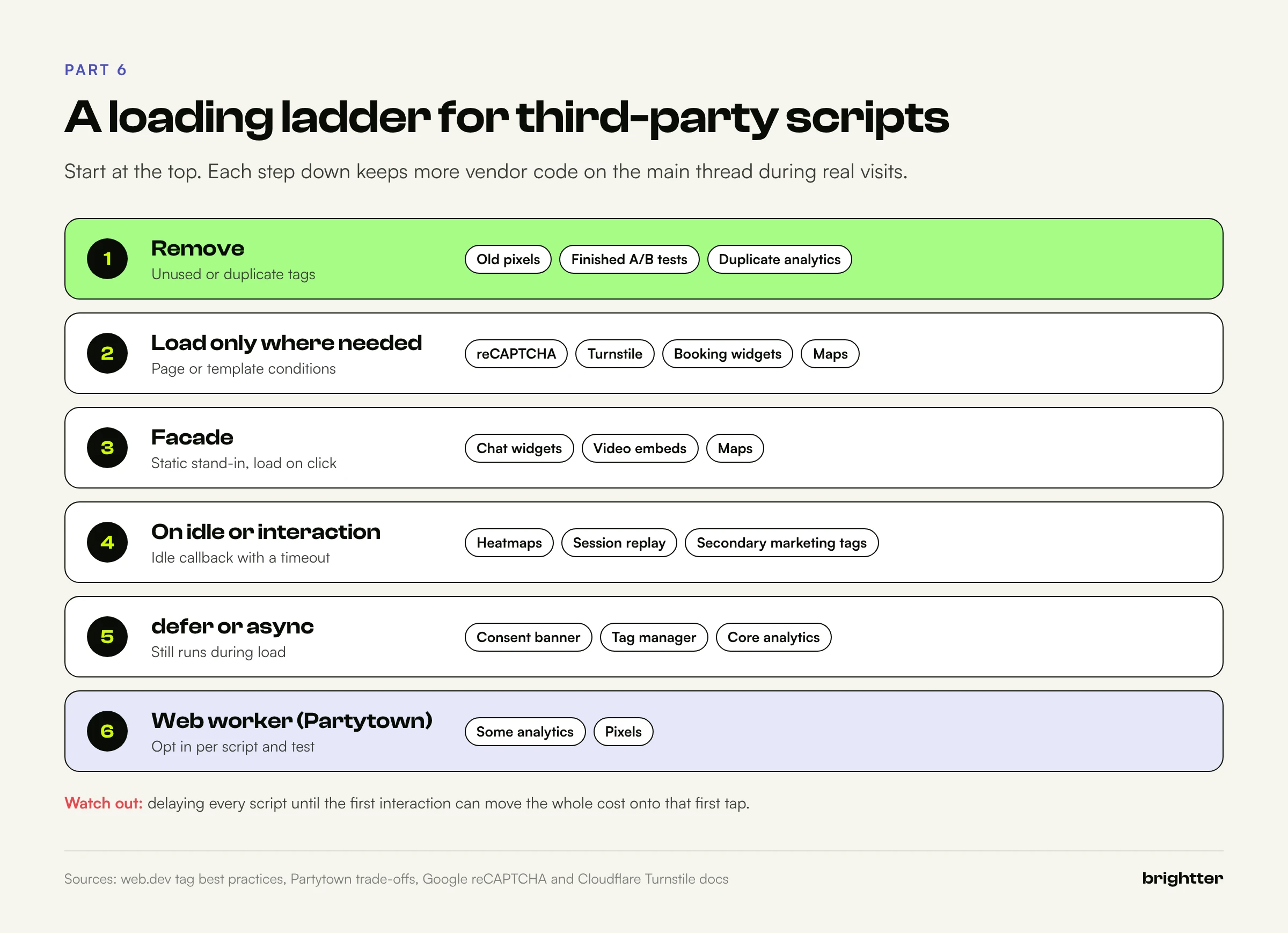
From safest to riskiest, the options are:
| Strategy | How | Good for | Watch out for |
|---|---|---|---|
| Remove | Delete the tag | Unused pixels, duplicate analytics, abandoned tests | Confirm no one depends on it |
| Load only where needed | Page or template-level conditions | reCAPTCHA, Turnstile, maps, booking widgets | Forms embedded in modals on other pages |
| Facade | Static placeholder, load on click | Chat, video embeds, maps | One slower click; accessibility of the placeholder |
| Load on interaction or idle | First pointerdown, keydown, scroll, or idle callback with a timeout | Heatmaps, session replay, secondary marketing tags | Data loss for very short visits; first interaction may be slower |
defer or async | Script attributes | Most tags that must run on every page | Still evaluates during load; contributes to input delay |
| Web worker (Partytown) | type="text/partytown" | Some analytics and pixel scripts | Compatibility; see below |
A caveat on "delay until interaction." Many optimization plugins and snippets delay all scripts until the user's first interaction. Lab scores improve, but the cost can move onto that first tap, which now triggers every delayed script at once. Check first-interaction INP, and prefer idle loading with a timeout for anything heavy.
Partytown caveats. Partytown runs third-party scripts in a web worker and proxies their DOM access to the main thread. Its documentation lists the tradeoffs: DOM operations in the worker are "purposely throttled," events handled by third-party scripts that call event.preventDefault() have no effect, it suits scripts that mainly listen to events and send data (it names Google Tag Manager and Facebook Pixel) better than scripts that build UI, some services need a proxy because they don't send CORS headers, and page exit events are unreliable, so some unload-time analytics won't be sent. Its README states that it "is not guaranteed to work in every scenario." Treat it as an opt-in, per-script tool that you validate against your analytics data, not a switch you flip for every tag.
Part 7: Platform Notes for Webflow and WordPress
Webflow
Webflow publishes static, server-rendered HTML, so the core page is light on JavaScript. As a Webflow Certified Partner, we find INP problems on Webflow sites usually come from what is layered on top.
Interactions. In July 2025, Webflow released Interactions with GSAP to all users at no extra cost, built on the GSAP library it had acquired, alongside Classic Interactions. Webflow's help center calls the GSAP version the recommended one and notes that each version loads its own resources, so a site using both pays for both.
- Pick one interaction system per site, and avoid mixing them on the same page.
- Be careful with interactions triggered on click that animate many elements or properties that force layout (width, height, top, left). Animate
transformandopacitywhere you can. - Large, always-on scroll animations and page-load sequences keep the main thread busy and add input delay for early taps. Test the first interactions on a throttled mobile profile.
- Keep mega menus and tab panels shallow. A menu built from dozens of nested wrappers, each with its own interaction, is expensive to show and to style.
Custom code. Code can be added in site settings (head and footer), page settings, and Embed elements. Each is a place where tags accumulate.
- Put non-critical scripts in the footer code, with
defer, and load vendor widgets with the facade or on-idle patterns above. - Use page-level custom code for page-specific tools (reCAPTCHA or Turnstile on the contact page, a booking widget on the booking page) instead of site-wide code.
- Watch for client-side CMS libraries that filter, sort, or load CMS items with JavaScript. Filtering a long collection list in the browser can produce long tasks on each filter click. Use native pagination, limit the list size, and test the filter interaction specifically.
- Check for duplicate loading: the same analytics or consent script added in site settings, in an Embed, and in a tag manager.
A small loader for Webflow's footer code that delays non-critical tags until idle or first interaction, whichever comes first:
<script>
  (function () {
    var loaded = false;
    function loadDeferredTags() {
      if (loaded) return;
      loaded = true;
      ['https://cdn.heatmap.example/tag.js', 'https://cdn.reviews.example/badge.js']
        .forEach(function (src, i) {
          setTimeout(function () {             // stagger so each runs in its own task
            var s = document.createElement('script');
            s.src = src; s.async = true;
            document.body.appendChild(s);
          }, i * 300);
        });
    }
    ['pointerdown', 'keydown', 'scroll'].forEach(function (evt) {
      addEventListener(evt, function () { setTimeout(loadDeferredTags, 0); },
                       { once: true, passive: true });
    });
    if ('requestIdleCallback' in window) requestIdleCallback(loadDeferredTags, { timeout: 5000 });
    else setTimeout(loadDeferredTags, 5000);
  })();
</script>
The setTimeout inside the interaction listener matters: it keeps the script injection out of the interaction's own task, so the user's first tap paints before the tags start loading. For the broader platform tradeoffs, see Webflow vs Headless vs Custom in 2026.
WordPress
WordPress sites have a different shape: the HTML is server-rendered, but plugins can enqueue scripts on every page, and page builders can produce large, deeply nested DOMs.
- Audit enqueued scripts per template. Many form, slider, and popup plugins load their scripts site-wide. Form plugins that integrate reCAPTCHA commonly load it on every page. Dequeue scripts on templates that don't need them, or use a plugin that manages per-page script loading.
- Use the script loading strategies API. Since WordPress 6.3,
wp_register_script()andwp_enqueue_script()accept astrategyofdeferorasync. - Reduce page builder DOM. Builders that wrap each element in several containers can push pages into thousands of elements. Simplify sections, prefer native blocks, and avoid hidden duplicate mobile and desktop versions of the same section.
- Test "delay JavaScript" features. Caching and optimization plugins often include a "delay JavaScript execution until user interaction" option. As explained above, test first-interaction INP when you turn it on.
<?php
// functions.php (child theme): defer a theme script, and only load reCAPTCHA where a form exists.
// Check the actual script handles your plugins register (for example with Query Monitor).

add_action( 'wp_enqueue_scripts', function () {
    wp_enqueue_script(
        'site-ui',
        get_stylesheet_directory_uri() . '/js/site-ui.js',
        array(),
        '1.4.0',
        array( 'strategy' => 'defer', 'in_footer' => true )
    );

    // Pages that contain a form; adjust to your site.
    $form_pages = array( 'contact', 'request-a-quote' );
    if ( ! is_page( $form_pages ) ) {
        wp_dequeue_script( 'google-recaptcha' );   // replace with your plugin's handle
        wp_deregister_script( 'google-recaptcha' );
    }
}, 100 );
The priority of 100 runs this after most plugins have enqueued their scripts. Script handles differ between plugins, so confirm them before deploying. For the full WordPress Core Web Vitals picture (LCP and CLS as well), see our technical guide to optimizing Core Web Vitals for WordPress.
Headless and JavaScript-heavy front ends
Framework sites add hydration and client-side route rendering to the same third-party issues, and the fixes in Part 5 apply directly. The rendering choices that help AI crawlers and search engines read your content (covered in JavaScript SEO in 2026) usually help INP too, because server-rendered HTML lets the browser parse and render in chunks instead of in one long JavaScript task.
Part 8: Common Mistakes and Failure Patterns
These patterns show up again and again when INP fails on otherwise well-built sites.
Optimizing TBT and calling it done. Lighthouse scores improve after delaying scripts, but INP in CrUX doesn't move, because the delayed scripts now run during the first interaction. Fix: measure first-interaction INP in RUM, and use idle loading with a timeout for heavy scripts.
Testing on a fast laptop. Everything feels instant on a developer machine. Fix: use calibrated CPU throttling, and test on a real mid-range Android phone with remote debugging.
Testing only after load. The slow interactions happen in the first seconds, when a user taps the menu while scripts are still evaluating. RUM shows loadState values of dom-interactive or dom-content-loaded. Fix: reproduce during load, and reduce startup work.
The everything-in-the-click-handler pattern. A click handler updates state, writes to storage, pushes three analytics events, recomputes a layout, and calls an API, all synchronously. Fix: visual update first, then afterNextPaint for the rest.
The consent cascade. The "Accept all" button releases every waiting tag in the same task. The most common first interaction on the site becomes the slowest. Fix: hide the banner first, stagger tag release, and remove tags no one uses.
The site-wide widget. reCAPTCHA, chat, reviews, or a booking widget loads on every page for a feature used on three pages. Fix: load per page, on intent, or behind a facade.
Trusting one data source. RUM looks fine but CrUX fails (iframes, consent-biased samples), or CrUX passes on the origin while key templates fail at the URL level. Fix: compare CrUX URL, CrUX origin, and RUM by template before prioritizing.
Fixing and checking the next day. CrUX is a 28-day rolling window. Fix: track weekly with the CrUX History API and watch RUM for immediate confirmation.
Part 9: A Measurement and Remediation Plan
This sequence works for most teams. It assumes four to six weeks, mainly because field data takes that long to confirm results.

Step 1: Establish the baseline (days 1 to 3)
- Open Search Console's Core Web Vitals report and list the URL groups failing INP on mobile and desktop. Note example URLs for each.
- Pull CrUX API data for the origin and your top 20 to 50 URLs on phones, and start a weekly History API pull so you have a trend line before changing anything.
- Map failing URLs to templates. INP problems almost always belong to templates and components, not individual pages.
Step 2: Instrument real users (days 3 to 10)
- Deploy the web-vitals attribution collector on all templates, and send it to a store you can query.
- Rank templates and
interactionTargetvalues by p75 INP, with phase breakdowns andloadState. - Run the LoAF report in the field (as part of RUM) or in the lab for the top templates, and list the top script hosts by time in long frames.
Step 3: Diagnose the top five interactions (days 8 to 14)
- For each of the five worst element and template combinations, reproduce in DevTools with calibrated throttling, during load and after load.
- Record traces and note the dominant phase, the scripts involved, and whether third-party code is in the path.
Step 4: Fix in order of reach (weeks 2 to 4)
Prioritize by how many page views a fix touches, then by how much it saves:
- Third-party removal and loading changes: unused tags, site-wide widgets that only some pages need, chat facades, consent cascade staggering. These often touch every template at once.
- Interaction handlers on high-traffic components: navigation, search, add to cart, filters, consent buttons. Apply visual-update-first and yielding.
- Startup work: bundle splitting, deferred initialization, less hydration, to cut input delay for early interactions.
- Rendering cost: DOM size, scoped style changes,
content-visibility, layout thrashing fixes. - Framework-specific work: transitions and deferred values in React, incremental rendering, workers for heavy computation.
Ship fixes behind feature flags where you can, so you can compare RUM data for the old and new versions in parallel instead of waiting for CrUX.
Step 5: Verify and protect (weeks 4 to 6, then ongoing)
- Watch RUM p75 by template daily after each release, and the CrUX History API weekly.
- Confirm in Search Console once the 28-day window has rolled over, and use the report's validation flow for fixed groups.
- Add guardrails: a performance budget for third-party script count and size per template, a review step before anyone adds a tag to the tag manager or site-wide custom code, and an alert when RUM p75 INP crosses 200 milliseconds for a key template.
- Re-run the LoAF host ranking quarterly, because third-party scripts change without notice.
Conclusion: Make the Next Frame Cheap
INP looks complicated because the causes are spread across your code, your framework, your rendering pipeline, and every vendor script on the page. The principle underneath is simple: when a user acts, the browser must be free to respond, and the response must be cheap to render.
So: keep tasks short and yield often, paint the visible response first, keep the DOM small and style changes local, load third-party code only where it earns its place, and measure in the field with attribution, so you fix the interaction that actually fails.
Start with one template this week. Put the web-vitals attribution build on it, find the slowest element, and trace it on a throttled profile. The cause is almost always clear once you can see the phases.
Need help fixing slow interactions? Brightter, Inc. diagnoses INP with field data, RUM attribution, and DevTools traces, then fixes the causes at the platform level, from consent banner and bot protection integrations to interaction handlers and tag manager cleanup. As a Webflow Certified Partner that also builds on WordPress and modern JavaScript frameworks, we work in your codebase, not just in a report. Talk to our team about a Core Web Vitals audit.